
Advanced Features
Embed Chatbots On Websites
Learn how to embed your chatbot on any websites.
Allowlist Your Domain
To integrate the chatbot into your website effectively, you must allowlist your main domain. This process ensures that the chatbot will function on your production site and be set to public visibility. You also have the option to block specific URL paths on your site, which prevents the chatbot from appearing on those pages. Set up these preferences on the security settings page at https://www.chat-data.com/chatbot/{chatbotId}/settings/security. 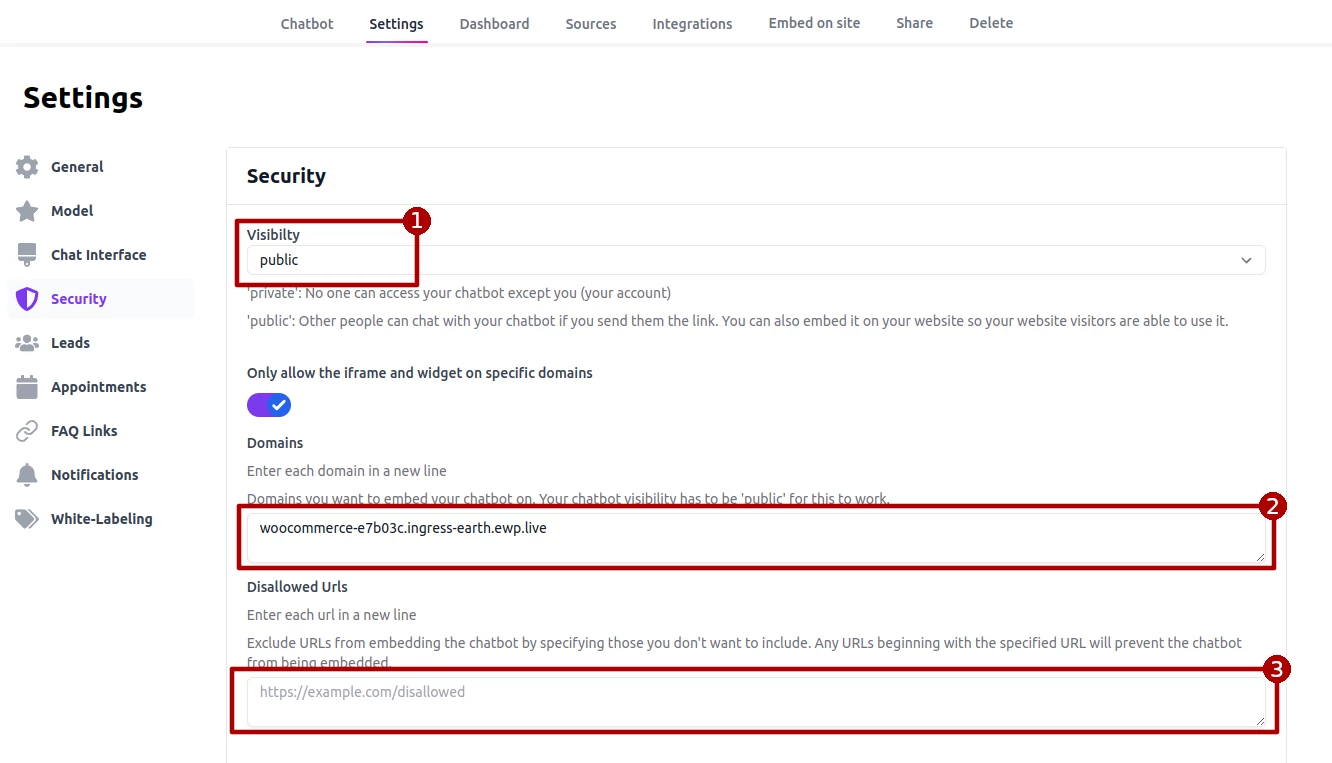
Embedding the Chatbot with Scripts
Click the Embed on site button to obtain the embedding script. Ensure that your chatbot's visibility is set to public to enable the script properly. 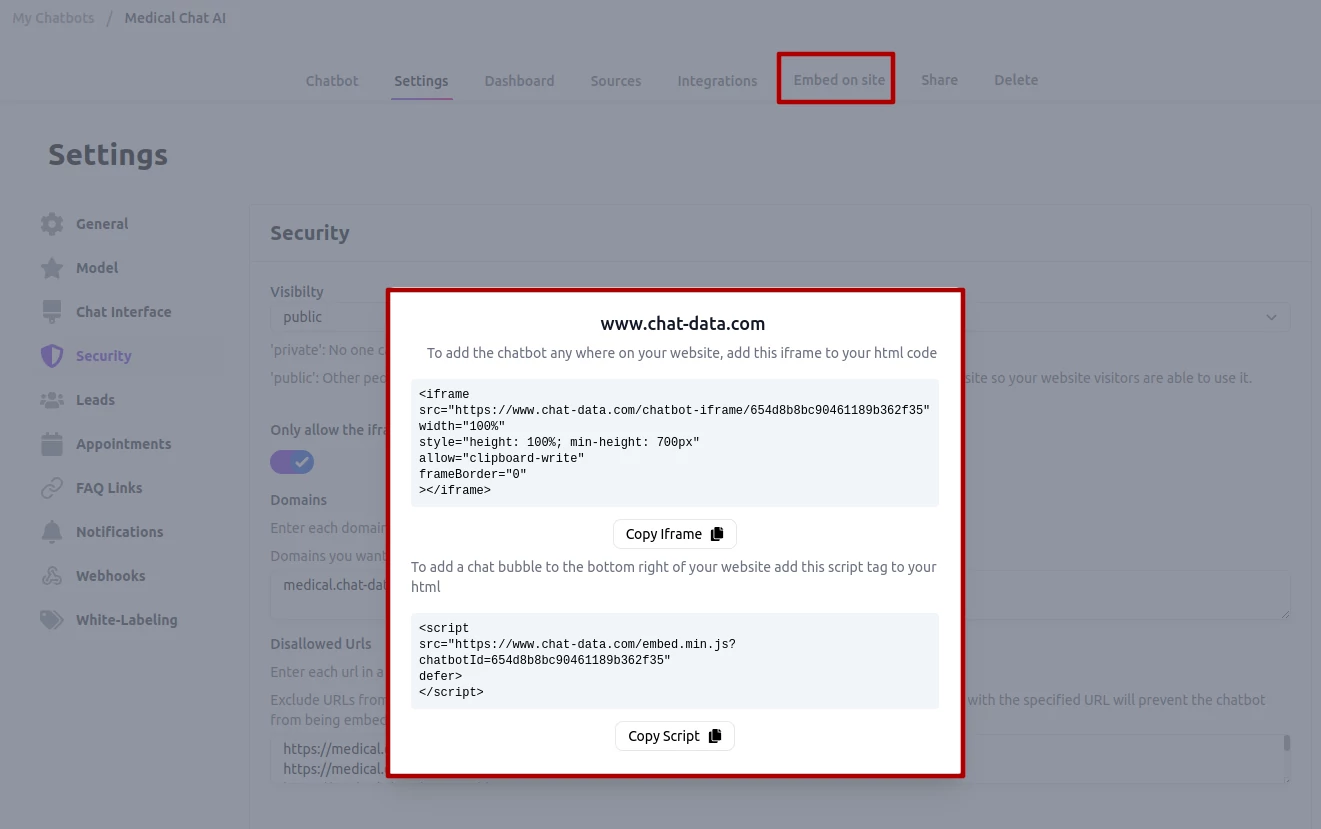
Chatbot Iframe
Utilize the iframe script by copying and pasting the code directly into the HTML of your webpage to embed the chatbot.
Chatbot Widget
Alternatively, use the second script to embed the chatbot as a floating bubble at the bottom of your webpage.
Frequently Asked Questions
How do I embed a Chat Data chatbot on a website?
The guide says the website setup starts by allowlisting your domain and making the chatbot public, then choosing one of two embed approaches: an iframe embed placed directly in the page HTML or a floating widget script that shows the chatbot as a bubble.
Why do I need to allowlist my website domain before embedding?
The main domain must be allowlisted so the chatbot is permitted to run on the production site. It also notes that you can block specific URL paths in the security settings if there are pages where you do not want the chatbot to appear.
What is the difference between the iframe embed and the widget embed?
According to the guide, the iframe script is used when you want to place the chatbot directly inside the HTML of a webpage as part of the page layout. The widget script is the alternative option for showing the chatbot as a floating bubble at the bottom of the website.
Where do I get the website embed code for my chatbot?
To click the `Embed on site` button to retrieve the scripts. It also reminds you that the chatbot must be set to `public` visibility for the embed code to work correctly on your website.