
Advanced Features
MCP Integration
Chat Data now supports Model Context Protocol (MCP) integration, enabling your chatbot to access 834 built-in MCP applications with over 5,000 tools. This powerful feature allows your chatbot to automatically trigger actions during conversations, from sending emails to managing calendars, creating documents, and much more.
What is MCP Integration?
Model Context Protocol (MCP) is an open standard that allows AI chatbots to securely connect with external tools and services. With MCP integration, your Chat Data chatbot can interact with popular productivity and communication platforms including Gmail, Google Calendar, Notion, Slack, GitHub, Trello, Asana, and hundreds more.
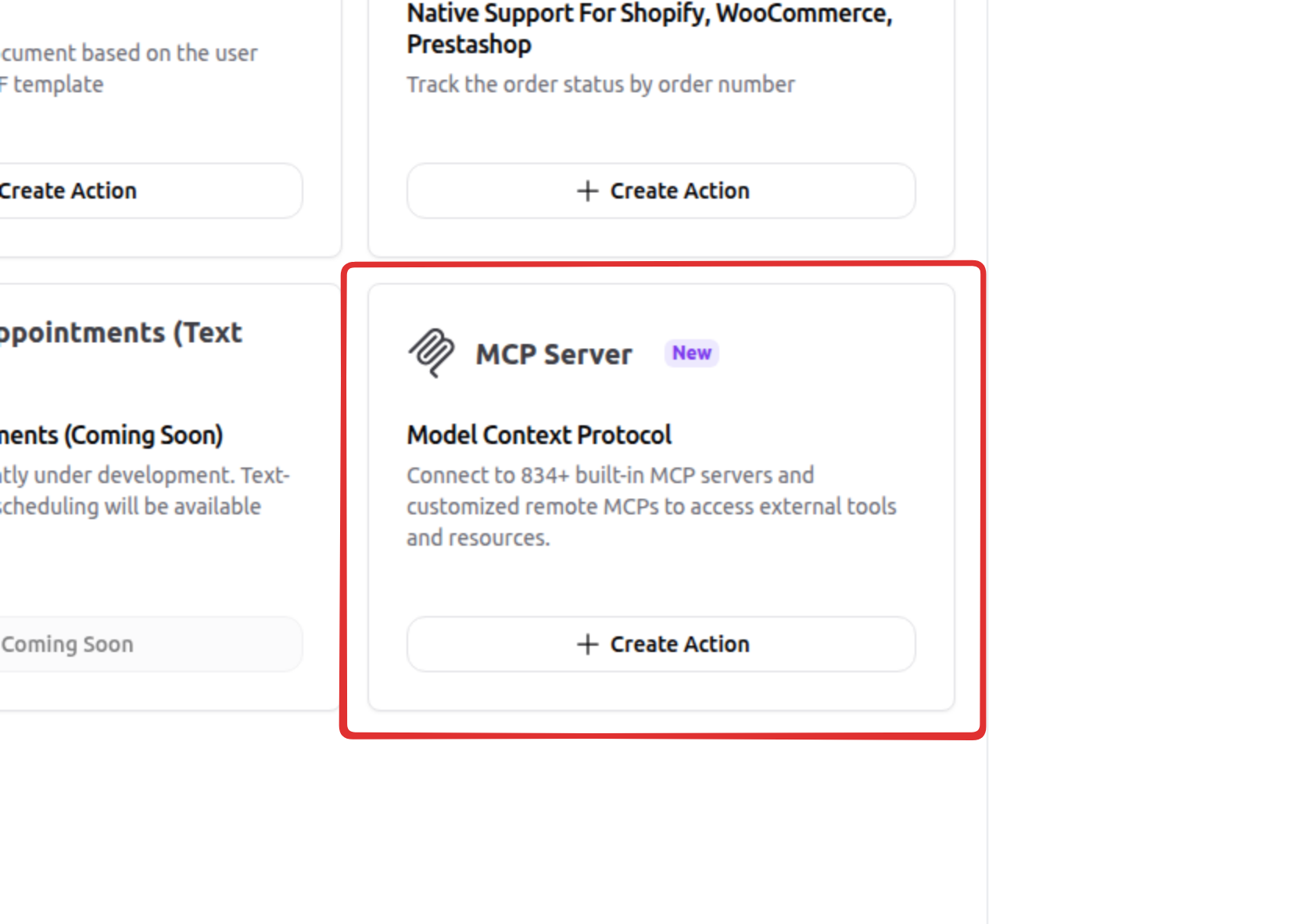
These integrations work as AI Actions, meaning your chatbot can automatically perform tasks on behalf of users during conversations, creating a seamless and powerful user experience.
Getting Started with MCP Integration
You have two options for integrating MCP servers with your chatbot:
Option 1: Use Built-in MCP Apps (834 Apps Available)
Chat Data provides ready-to-use integrations with 834 pre-built MCP applications, giving you instant access to thousands of tools without any configuration. Simply browse the catalog and connect the apps you need.
Popular built-in apps include:
- Communication: Gmail, Slack, Microsoft Teams
- Productivity: Notion, Trello, Asana, Monday.com
- Development: GitHub, GitLab, Jira
- Calendar: Google Calendar, Outlook Calendar
- And hundreds more across different categories
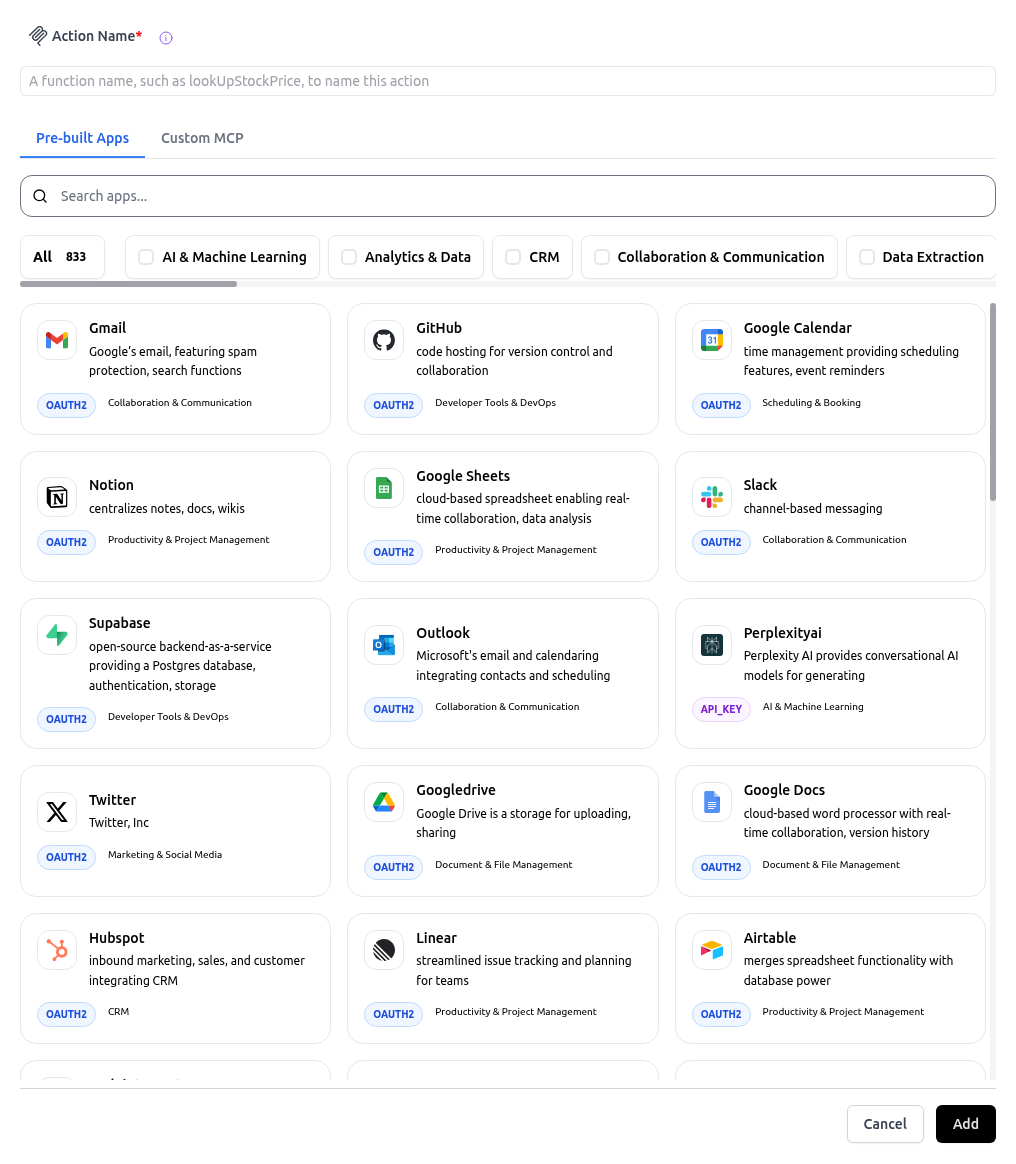
To use built-in MCP apps:
- Navigate to the AI Actions section in your chatbot settings
- Browse the catalog of 834 available MCP applications
- Select the app you want to integrate
- Follow the authentication steps (see below)
- Choose which tools from the app you want to enable
Option 2: Add Custom Remote MCP Server
For more specialized needs or custom integrations, you can add your own remote MCP server by providing the server URL. This is perfect for proprietary tools or niche services not included in the built-in catalog.
To add a custom remote MCP server:
- Find a remote MCP server URL.
- In your chatbot's AI Actions settings, select Add Custom MCP Server
- Enter the remote MCP server URL
- Complete the authentication process
- Select which tools you want to enable
Authenticating with MCP Servers
Before your chatbot can use MCP tools, you need to securely connect your account with the MCP server. This ensures that actions are performed with proper authorization.

The authentication process:
- After selecting an MCP app or adding a custom server, click Connect Account
- You'll be redirected to the service's authentication page
- Grant the necessary permissions for the chatbot to perform actions on your behalf
- You'll be redirected back to Chat Data once authentication is complete
- The connection is now active and secure
Security Note: Chat Data uses industry-standard OAuth protocols to ensure your credentials are never stored directly. You can revoke access at any time from your account settings.
Selecting MCP Tools
After authenticating with an MCP server, you'll need to select which specific tools from that server your chatbot can use. This gives you fine-grained control over your chatbot's capabilities.
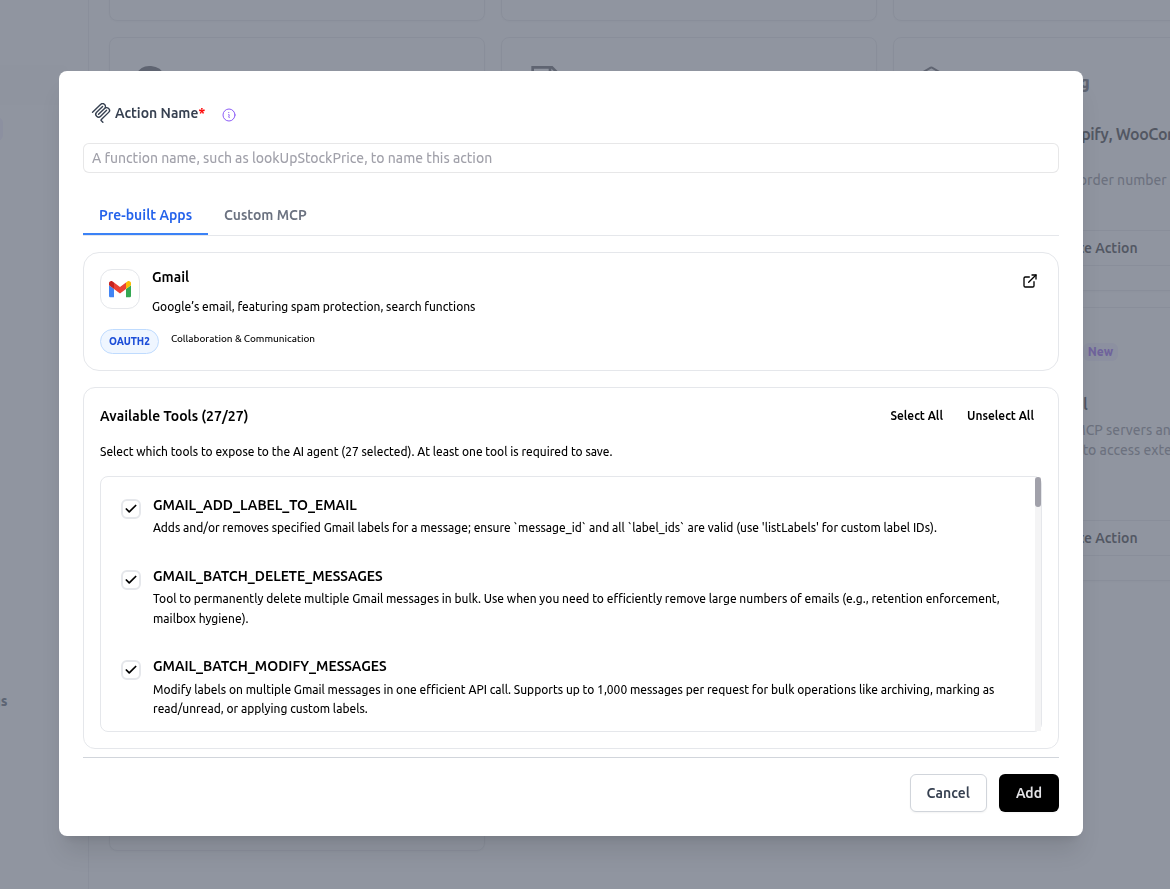
Important guidelines for tool selection:
- At least one tool must be selected - You cannot activate an MCP AI action without selecting at least one tool
- Each tool counts as one AI action quota - Every tool you enable contributes to your AI action usage limit
- Choose wisely - Only enable the tools you actually need to optimize your quota usage
For example, if you connect Gmail and select three tools (Send Email, Read Email, Search Email), this counts as three AI actions toward your limit.
Managing AI Action Quota
MCP tools are part of your overall AI Actions quota. Here's what you need to know:
- Each MCP tool you enable counts as one AI action toward your account limit
- You can view your current AI action usage in the Usage Dashboard
- To optimize quota usage, only enable the MCP tools your chatbot actually needs
- You can disable tools at any time without losing your authentication
For more information about AI Actions and quota management, visit our AI Actions documentation.
Use Cases
With MCP integration, you can create powerful automation workflows for your chatbot:
- Email Automation: Automatically send confirmation emails, follow-ups, or notifications via Gmail
- Calendar Management: Schedule meetings, check availability, and send calendar invites through Google Calendar
- Document Creation: Generate and update documents in Notion or Google Docs based on conversation context
- Team Collaboration: Post updates to Slack channels, create Trello cards, or assign tasks in Asana
- Development Workflows: Create GitHub issues, update pull requests, or track bugs in Jira
- CRM Integration: Update customer records, log interactions, and manage leads
- And much more with 834+ apps and 5,000+ tools at your disposal
The possibilities are nearly endless - any repetitive task that involves these platforms can be automated through your chatbot.
MCP in Workflows
MCP tools can be configured per AI Conversation node in the Workflow builder, giving you step-level control over which tools are available at each point in a multi-step workflow.
With MCP in workflows, you can:
- Select tools per node - Choose exactly which MCP tools are available at each AI Conversation step
- Control triggering conditions - Use workflow conditions to determine when MCP actions execute
- Map workflow variables - Pass data from earlier nodes into MCP tool parameters via variable interpolation
- Chain action outputs - Store MCP action results to workflow variables and use them in subsequent nodes
For example, you could build a workflow where the first node uses Google Calendar to look up an event and stores the event ID, then a later node uses that ID to reschedule or cancel the event.
To learn more about workflows, visit our Workflow AI Actions documentation.
Further Information
- Read the official announcement: MCP Integration Changelog
- Learn about AI Actions: AI Actions Documentation
- Explore Workflow capabilities: Workflow AI Actions Discover remote MCP s Need help with MCP integration? Contact our support team at [email protected].
Frequently Asked Questions
What can MCP integration add to my chatbot?
It lets the chatbot connect to external tools through Model Context Protocol servers so it can perform actions in apps like Gmail, Google Calendar, Notion, Slack, GitHub, Trello, Asana, and hundreds of other services during a conversation.
Can I use both built-in MCP apps and my own MCP server?
Yes. two options: choose from 834 built-in MCP apps in the catalog, or add a custom remote MCP server by entering its server URL.
How does authentication work for MCP integrations?
After selecting a built-in app or adding a custom server, you click Connect Account, complete the provider's authentication flow, grant permissions, and return to Chat Data with an active connection. Chat Data uses OAuth so credentials are not stored directly.
Do I have to choose specific MCP tools after connecting an app?
Yes. You must select at least one tool before the MCP AI action can be activated, and the selection determines exactly which capabilities your chatbot can use from that server.