
Multi-platform Integrations
WhatsApp Web Integration
WhatsApp Web Integration connects your existing WhatsApp number to your chatbot by scanning a QR code, exactly like linking WhatsApp Web on a laptop. There is no Meta Business account to create, no API fees, and no phone number migration. Setup takes about a minute, and your phone keeps working normally afterwards.
This is the fastest way to put an AI chatbot on WhatsApp, and it is a good fit for small businesses, freelancers, consultants, and anyone who wants to automate replies on the number they already use.
Choosing between the two WhatsApp integrations
Chat Data offers two ways to put a chatbot on WhatsApp. They are not interchangeable, so it is worth picking deliberately before you start.
| WhatsApp Web Integration (this guide) | WhatsApp Integration (official) | |
|---|---|---|
| Underlying technology | WhatsApp Web linked device | Meta WhatsApp Business API |
| Setup time | About a minute, scan a QR code | Meta Business verification, typically much longer |
| Meta Business account | Not needed | Required |
| Your phone number | Keeps working normally on your phone | Taken over, cannot be used in the WhatsApp app |
| Officially supported by WhatsApp | No | Yes |
| Can be disconnected without warning | Yes | No |
| Message fees | None from Meta | Free tier, then Meta conversation pricing |
| Template broadcast messages | Not available | Available |
| Best for | Small teams wanting automation quickly | Businesses needing guaranteed reliability |
Unofficial integration, use at your own risk
This integration connects your account as a WhatsApp Web device rather than through Meta's Business API. WhatsApp does not officially support this, and can disconnect the linked device at any time without warning. Chat Data emails you when a disconnect happens, but messages are not answered until you reconnect by scanning a new QR code.
If uninterrupted service matters more than setup speed, use the official WhatsApp Integration instead.
Connect your WhatsApp account
1. Open the integration
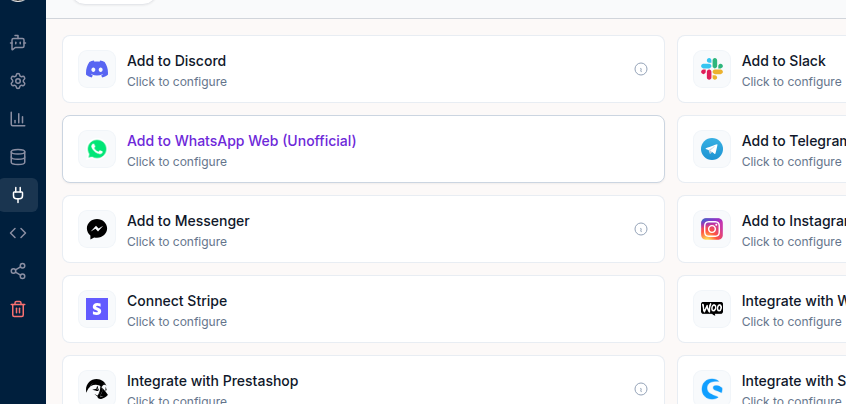
Go to Dashboard > [Chatbot] > Integrations and select Add to WhatsApp Web (Unofficial).
2. Generate the QR code
The integration window explains what you are connecting. Review the notice, then click Generate QR Code.
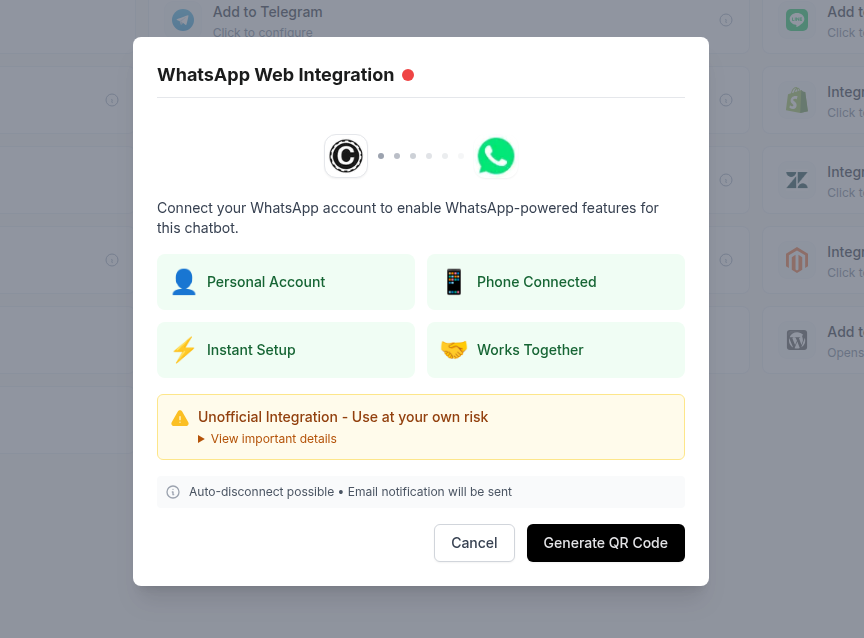
The four badges summarise how this integration behaves:
- Personal Account — uses your own WhatsApp number, no Business API
- Phone Connected — your phone stays linked and fully usable
- Instant Setup — connected in seconds once you scan
- Works Together — works alongside live chat, AI actions, and your other Chat Data features
3. Scan with your phone
Open WhatsApp on the phone that owns the number, then:
- Open WhatsApp on your phone
- On Android tap Menu (⋮) · on iPhone tap Settings (⚙)
- Tap Linked devices, then Link a device
- Scan the QR code to confirm
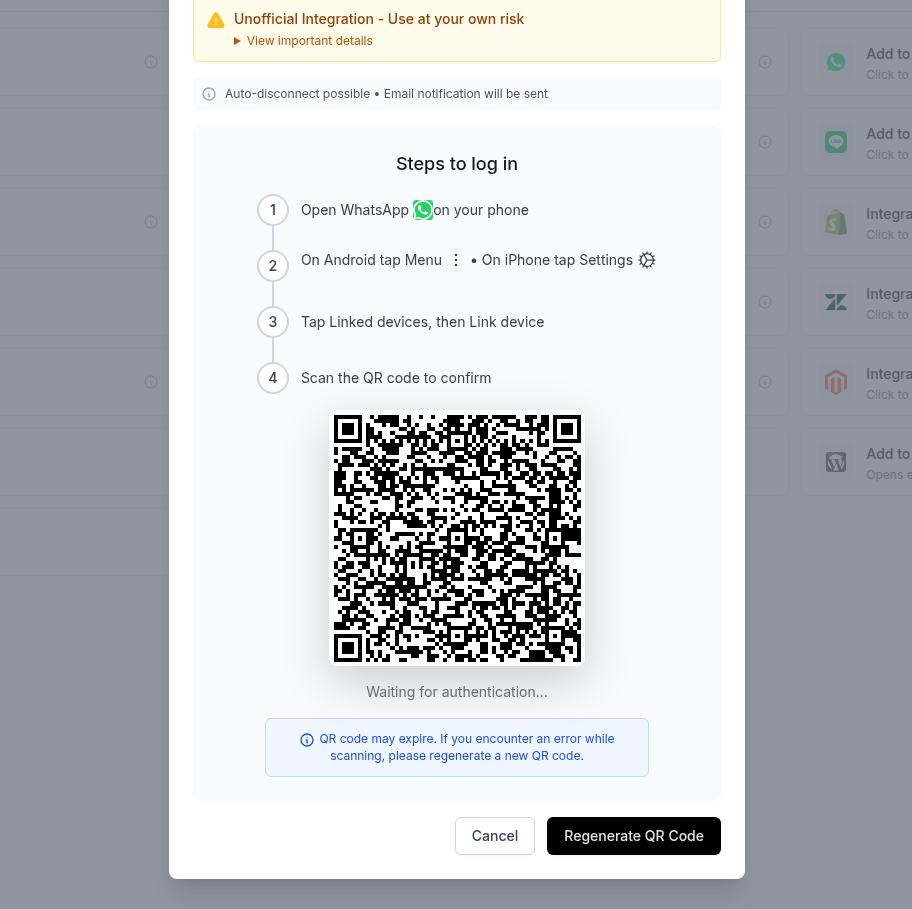
The screen shows Waiting for authentication… while it connects. Once the scan is accepted, the status dot in the Integrations tab turns green and your chatbot starts answering messages sent to that number.
Have your phone ready before you generate the code
The QR code rotates every few seconds and the whole code expires after roughly two minutes. That is enough time to scan, but not enough to go and find your phone first.
If the code expires or scanning fails, click Regenerate QR Code and scan the fresh one. A failed scan is almost always an expired code rather than a real problem.
Keeping the connection alive
Because this is a linked device rather than an API connection, WhatsApp can end the session. In practice most disconnects come from a small number of avoidable causes.
Stay within WhatsApp's four linked device limit. WhatsApp allows four linked devices per account. If you link a fifth — a laptop, a tablet, another browser — WhatsApp silently removes the oldest one, and that is often the Chat Data connection. Before linking anything else, check Linked devices on your phone and remove what you no longer use.
Keep your phone online periodically. Linked devices work while your phone is offline, but WhatsApp expires them if the phone stays unreachable for an extended period.
Do not log out of the device manually. Removing the Chat Data entry from Linked devices on your phone disconnects the chatbot immediately.
When a disconnect happens
Chat Data detects it and sends an email to the address in your live chat settings. The connection status dot in the Integrations tab turns red.
Reconnecting is the same flow as the first time: open the integration, click Generate QR Code, and scan it. Your conversation history and leads are preserved — only the connection is re-established.
A disconnected chatbot stops answering silently
Customers messaging your number get no reply while the connection is down, and nothing tells them why. If this number matters to your business, treat the disconnect email as urgent, and check the status dot in the Integrations tab whenever you have not seen chatbot activity for a while.
Configuring the chatbot's behaviour
The settings below are configured in the WhatsApp Web integration window after connecting.
Response format
Choose how the chatbot replies:
- Text — standard text replies
- Audio — voice messages generated with AI text-to-speech, which requires your chatbot's audio settings to be enabled
- Mixed — text or audio depending on context
Response delay
The chatbot can wait a configurable interval before replying instead of answering instantly. A short delay makes the conversation feel more natural and less obviously automated.
Automatic AI pause
Set a duration, up to one week, during which the AI stops responding after a human steps in. Messages that arrive during the pause come to you by email instead, and the chatbot resumes automatically when the window ends.
AI re-engagement
Follow up on conversations that go quiet. You control the time window after the customer's last message, the conditions that justify a follow-up, and the tone of the message. The AI evaluates the conversation against your criteria before sending anything, so it does not follow up indiscriminately.
Phone number blocklist and allowlist
Restrict which numbers the automation applies to. A blocklist stops the chatbot replying to specific numbers, while an allowlist restricts it to approved numbers only — useful while you are testing on a live number.
Taking over a conversation
When the AI cannot help, you can step in from either place, and both work the same way.
From the Chat Data dashboard. Open the Live Chat tab, filter to WhatsApp conversations, and select the thread. Turn the AI off for that conversation and reply directly. See Live Chat Escalation for the full workflow.
From the WhatsApp app on your phone. Just reply to the customer as you normally would. Because your number is still live on your phone, this works with no extra setup — and unlike the official integration, you are not locked out of the app.
Either way, your reply is mirrored into the Chat Data dashboard and conversation history in real time, and the AI automatically pauses for that conversation for your configured auto-off window, 30 minutes by default. It will not reply on top of you, and your whole team sees the same up-to-date thread.
Sending outbound messages
You can start conversations rather than only responding to them, using the WhatsApp Web outbound API. Send order confirmations, appointment reminders, shipping updates, or re-engagement campaigns, and when the customer replies the conversation continues in the same thread.
Outbound messages support up to three file attachments each — images, PDFs, documents — and can be converted to audio when your chatbot's audio settings are enabled. New contacts are automatically created as leads.
Troubleshooting
The QR code will not scan. The code has almost certainly expired. Click Regenerate QR Code and scan the new one right away with your phone already on the Linked devices screen.
The chatbot connected but is not replying. Check the status dot in the Integrations tab. If it is red, the session disconnected and needs a new QR scan. If it is green, check whether the sending number is on a blocklist, or whether the AI is paused for that conversation because someone replied manually.
It keeps disconnecting. Open Linked devices on your phone and count the entries. If you are at four, WhatsApp evicts the oldest device whenever a new one is linked. Remove devices you no longer use and reconnect.
Replies from my phone are duplicated. This should not happen — replying from the app pauses the AI automatically. If you see the AI replying after you have already answered, check that the auto-pause duration in the integration settings is not set to zero.
Related guides
- WhatsApp Integration — the official Meta Business API integration
- Live Chat Escalation — human handover across every channel
- Customize Voices — configure the voice used for audio replies
Frequently Asked Questions
How is WhatsApp Web Integration different from the official WhatsApp Integration?
WhatsApp Web Integration links your existing personal or business WhatsApp number as a linked device, the same way WhatsApp Web on a laptop works. It takes about a minute to set up, needs no Meta Business account, and your phone keeps working normally. The official WhatsApp Integration uses Meta's Business API, which requires a Meta Business account and takes the number over completely, but is officially supported by WhatsApp.
Can I still use WhatsApp on my phone after connecting?
Yes. This is the main difference from the official integration. Your number stays fully usable on your phone, and replies you send from the WhatsApp app are synced into the Chat Data dashboard, which also pauses the AI so it does not reply on top of you.
Why does the setup screen warn that this is an unofficial integration?
It links your account as a WhatsApp Web device rather than going through Meta's Business API, so it is not officially supported by WhatsApp. WhatsApp can disconnect a linked device at any time without warning. Chat Data emails you when this happens, and reconnecting means scanning a new QR code.
What do I do if the QR code does not work?
QR codes rotate every few seconds and the whole code expires after roughly two minutes. If scanning fails or the code goes stale, click Regenerate QR Code and scan the fresh one. Have your phone open at the Linked Devices screen before you generate the code so you can scan immediately.