
Advanced Features
AI Agent Mode
AI Agent mode gives your chatbot the same agent as the AI Agent node, with one switch. Every text message is answered by an agent that works through the task step by step: it calls your tools in the order it needs, checks your knowledge base on every message, and remembers what it found earlier in the conversation. There is no workflow to build: you choose the AI provider, and we manage the models.
When to Use It
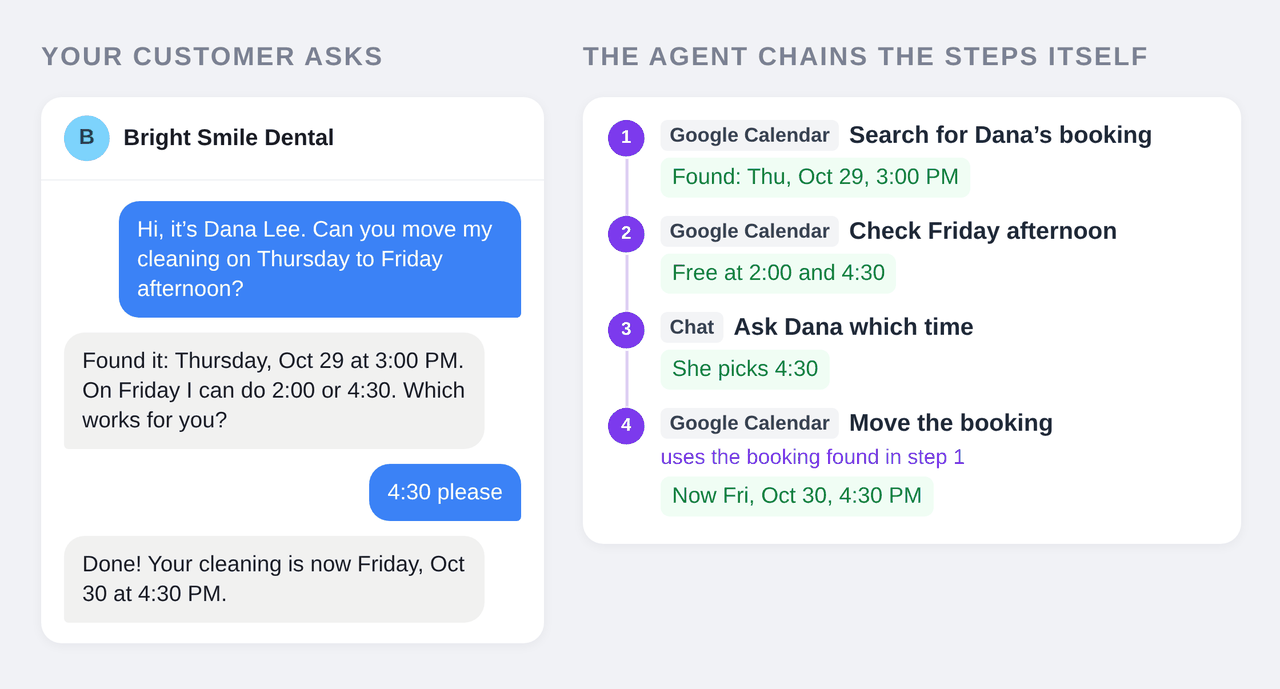
Use AI Agent mode when your chatbot's tasks need tools that depend on each other: one call finds an id and the next call uses it. Find the customer, then their orders. Find the booking, then move it. Find the ticket, then add a comment.
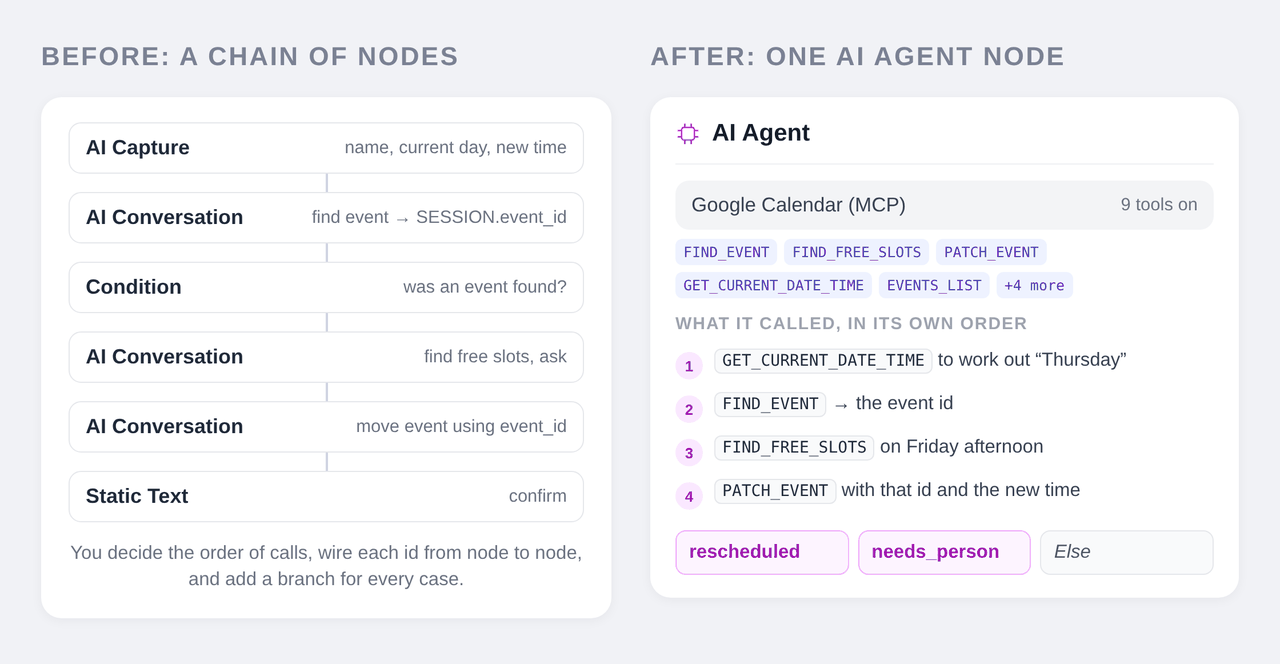
Without agent mode you would build that as a workflow of nodes, pass every id between them in variables, and add a branch for every case. In agent mode you connect the tools, describe the goal in your base prompt, and the agent plans the calls itself.
If your chatbot mostly answers questions from its knowledge base, or uses only one tool, Standard is the better choice: it answers faster and costs less per message.
Turn It On
- Connect at least 2 MCP tools in Settings → AI Actions. MCP actions count every selected tool, so one app with two selected tools is enough (see MCP Integration).
- Open Settings → Model. Under How your agent answers, choose AI Agent.
- Under AI provider, choose Anthropic (Claude) or OpenAI (GPT), then save. You can also switch modes and providers from the Playground.
Until the chatbot has 2 MCP tools, the AI Agent card shows Needs 2 MCP tools and explains why, with a link to AI Actions.
On a plan with a small AI action limit
Disabled actions don't count toward your plan's limit. Save the MCP tools disabled, switch to AI Agent mode, then enable them. In AI Agent mode up to 100 tools can be on, on every plan.
AI Agent mode is not available for chatbots that use a custom model, because the agent runs on Chat Data's models.
Write the Base Prompt
In AI Agent mode your base prompt is the agent's instructions. Describe the goal and the rules, not the steps; the agent works out which tools to call and in what order.
You are the front-desk assistant for Bright Smile Dental. Help patients with questions about treatments and opening hours, and move their appointments in the clinic's calendar. Find the appointment before you change anything, and confirm the new time first.
Time of Chatbot still applies, so the agent knows today's date.
What the Agent Can Use
The Tools the agent can use section on the Model page lists what the agent gets:
- Your AI actions, up to 100 tools on. Every selected MCP tool counts as one.
- Knowledge base search, built in. The agent checks your training data on every message, the same search Standard runs, and searches again with its own query when it needs more. Turn it off with Search the knowledge base (the same setting as Ignore Training Data Sources). RAG Enhancement by Reranking reranks each search.
- Live chat escalation, when Live Chat and Lazy Trigger Live Chat are on, exactly as in Standard (see Live Chat Escalation).
- Workflow actions are off. They stay saved and run again when you switch back to Standard.
Lead forms, buttons, appointment widgets and browser actions still work on your website. Browser actions don't count toward the 2 MCP tools AI Agent mode needs. On other channels the agent gets only the tools that work there, as in Standard.
UI-based Replies
Under Response Format, choose UI-based to show the agent's replies as rich UI (cards, lists, buttons) in the website widget. The agent works exactly as in text mode; only its finished reply is rendered as UI. Other channels (WhatsApp, Messenger, the API and the rest) keep receiving text. UI-based replies are billed for the tokens used to render the UI, plus the same flat UI charge per message as in Standard; if the UI can't be generated, the visitor gets the plain reply and neither is charged. UI-based replies are not available on HIPAA workspaces.
Limits
Max credits per reply caps what one reply may spend (leave it empty for no cap). It is a soft cap: the step that crosses it still finishes and is billed, then the reply stops. The visitor gets what the agent already wrote, or "I couldn't finish this request. Please try again or rephrase it."
To cap the chatbot's total spend, use the Credits Limiter.
Billing
Each reply is billed by the tokens it actually uses: every model call and tool step, converted into message credits. A simple answer costs little; a reply that chains several tools costs more. See pricing for your plan's credits.
If the agent can't answer (your workspace is out of credits, the chatbot reached its credit limit, or the model failed), the visitor gets the same message a Standard chatbot shows, and on the public API the request returns HTTP 400 as before.
Debug a Reply
Every reply in Chat Logs has a Debug button. For an agent reply it opens on a Summary tab: each step the agent took, the tools it called, and the credits and time of each step, with the total. The Details tab keeps the usual sources, credits and latency, plus the agent's raw steps.
What Is Not Used in AI Agent Mode
The Model page hides the settings the agent doesn't use, and lists them:
- Base model and Temperature: you choose the AI provider; we choose and manage the exact models, including a smaller one for helper work such as condensing long tool results.
- Include reasoning.
- Workflows, including force-triggered and cron-triggered workflows.
- Nested chatbots.
Regenerate is hidden in AI Agent mode: regenerating would run the agent's tools again (a booking could be made twice).
These settings keep their values. Switching back to Standard restores the chatbot exactly as it was.
Where It Applies
AI Agent mode answers text messages on the website widget, iframe, the dashboard preview, the public chat API and every third-party integration (WhatsApp, Messenger, Instagram, Slack, Telegram and the rest). Realtime voice chat and AI phone calls are not affected.
On the public chat API a basePrompt sent with the request is used as the agent's instructions; baseModel is ignored, because the agent's models are managed for you.
Frequently Asked Questions
What is the difference between AI Agent mode and the AI Agent node?
They run the same agent. The AI Agent node is one step inside a workflow, with exits that route the conversation to the next node. AI Agent mode makes the agent the whole chatbot: every message is answered by it, there are no exits, and you don't build a workflow.
Why does AI Agent mode need 2 MCP tools?
Two tools is the smallest chain: the agent takes what one tool returns, such as a booking id, and uses it to call the next, such as moving that booking. That chaining is what AI Agent mode adds. With one tool there is nothing to chain, and Standard answers faster for fewer credits.
Do my workflows still run in AI Agent mode?
No. Workflow actions are not offered to the agent, force-triggered workflows don't start, cron-triggered runs are skipped, and a workflow a conversation was in the middle of is not resumed. Your workflows stay saved and run again after you switch back to Standard. You can still test them in Workflow Studio.
How is AI Agent mode billed?
Each reply is billed by the tokens it actually uses: every model call and tool step, converted into message credits. A simple answer costs little; a reply that chains several tools costs more. Use Max credits per reply to cap a single reply and the Credits Limiter to cap the chatbot's total spend.