
Advanced Use Cases
Build an AI Phone Receptionist
In this guide you'll build a phone receptionist for an online store, "Harbor & Co". A customer calls at 9pm and asks "Where's my order? It's 4417." The agent looks the order up while they wait, tells them it shipped and arrives Thursday, and texts them the tracking link. If they need a person during business hours, it rings your team and briefs them first. Outside hours, it takes a message. When the customer calls back next week, they don't have to explain again.
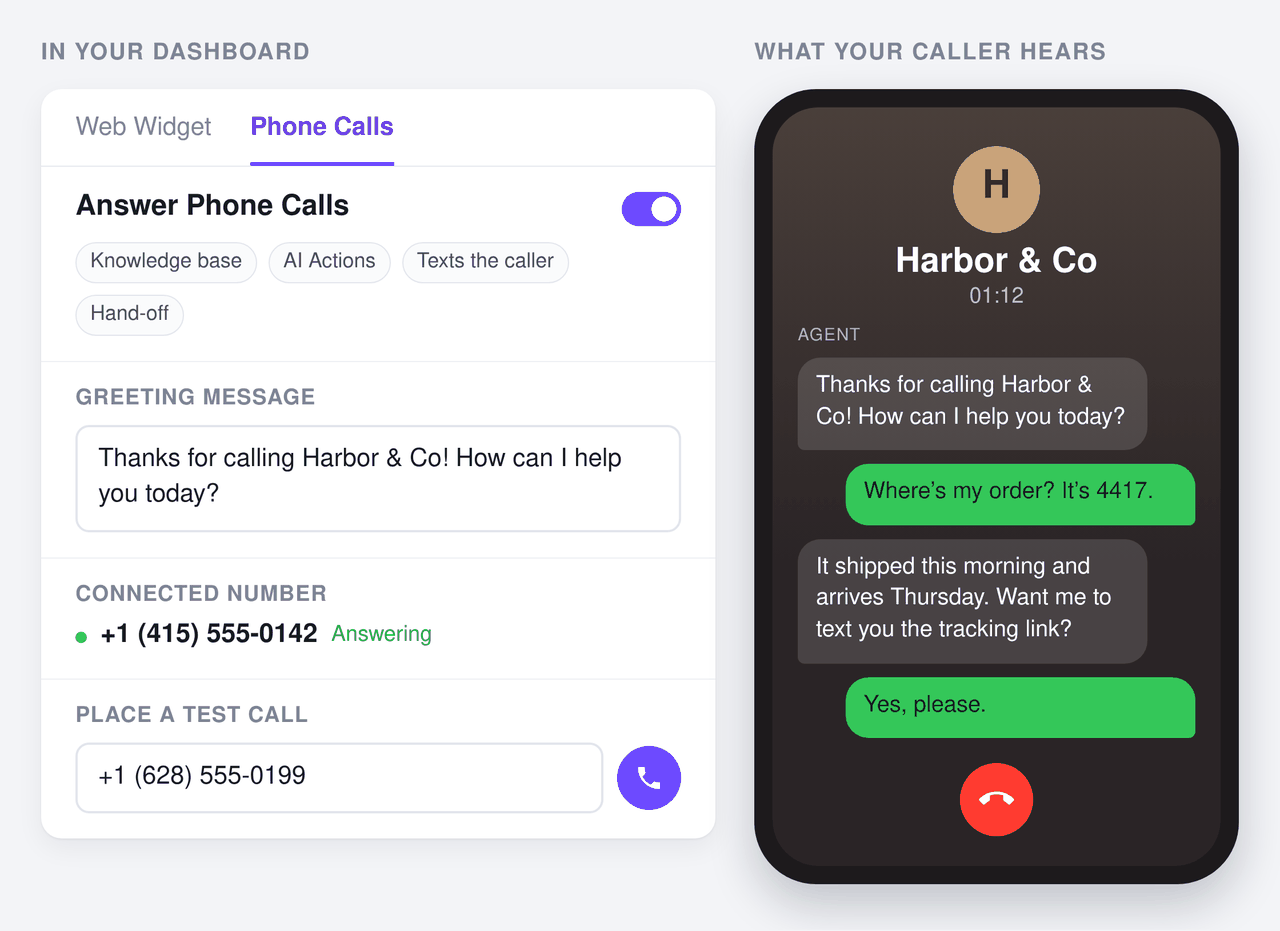
The same pattern fits most businesses that get the same questions by phone: clinics, salons, restaurants, property managers, service companies. Swap the order lookup for the AI Action your business needs. For every setting used here, see the AI Phone Calls reference.
Goal
By the end, a call to your business number will:
- Be answered right away with your greeting, at any hour.
- Get answers from your website and policies, in a natural spoken conversation the caller can interrupt.
- Look up an order while the caller waits, and text them the tracking link.
- Reach a team member, briefed on the call, for billing questions during business hours, and leave a message otherwise.
- Be saved in Conversations with a transcript, recordings and a summary the agent remembers next time.
What you need
- A Chat Data agent trained on your website, FAQ and policies. If you don't have one yet, create one from your website first (Train With Your Data).
- A plan that includes Realtime Voice (pricing).
- A Twilio account with a phone number that has Voice turned on. A trial account works for testing; upgrade it before going live.
- For order lookups: the Order Tracking AI action connected to your store (Online Store Order Tracking). Any other AI Action, API or MCP tool works the same way.
- For texting on a US number: the number registered for A2P 10DLC in Twilio. Registration can take a few days, so start it early.
Step 1: Make sure the agent knows your business
A phone receptionist is only as good as what it knows. Before you connect a number, open your agent's chat preview and ask it the questions your phone usually gets:
- "What are your opening hours?"
- "What's your return policy?"
- "Do you ship to Canada?"
- "Where's my order? It's 4417."
If an answer is wrong or missing, add it to the knowledge base now. For the order question, set up the Order Tracking action and check that the chat agent can look up a real order. Everything the chat agent can answer, the phone agent can answer.
Step 2: Connect your phone number
- Open the agent's Phone Numbers page and connect your Twilio account with its Account SID and Auth Token (both on the Twilio Console home page under Account Info).
- Choose the number the receptionist should answer, or buy a new one there.
- To keep the number your customers already know, leave it with your current provider and forward its calls to the Twilio number. Do this last, once testing is done (Step 9).
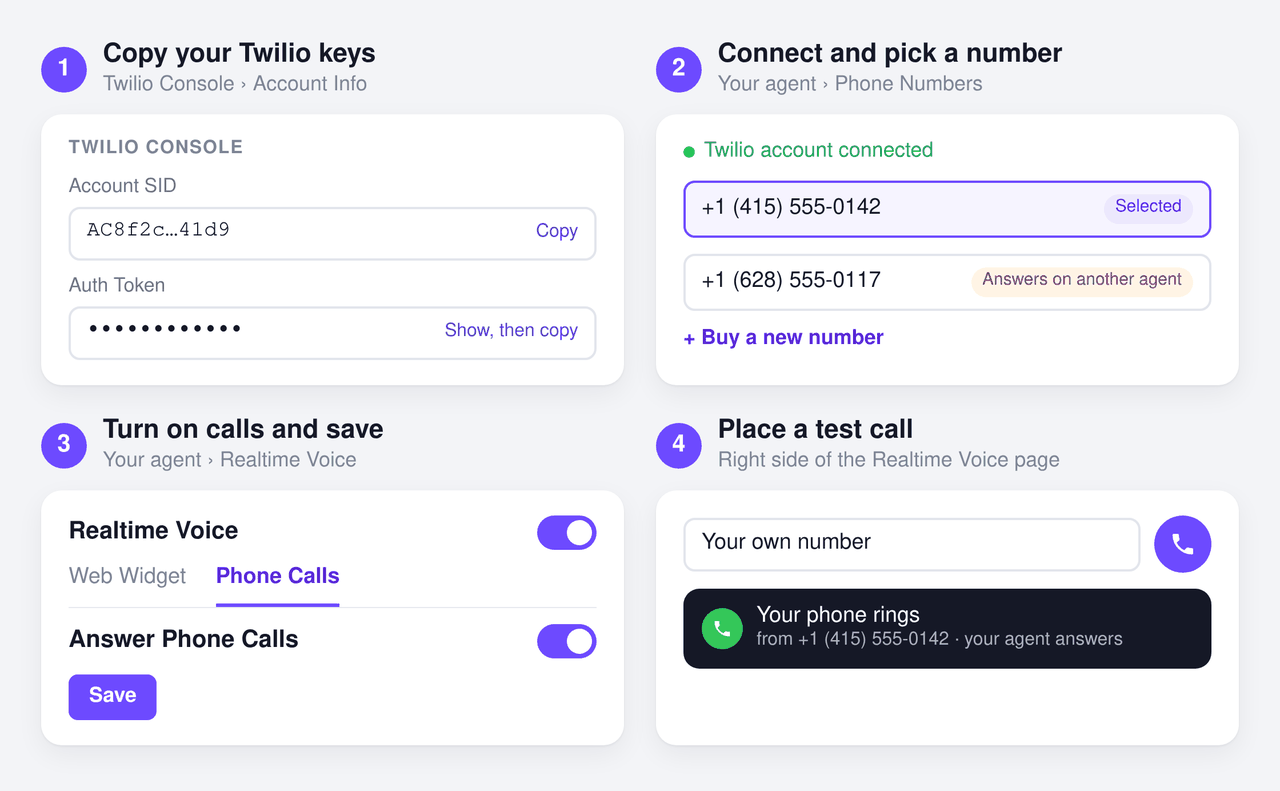
See Step 1 of the AI Phone Calls reference for what the labels on each number mean.
Step 3: Turn on calls and give them their own prompt
- Open Realtime Voice, turn on Realtime Voice, open the Phone Calls tab and turn on Answer Phone Calls.
- Turn on Use Separate Prompt for Phone Calls. A caller can't scroll back or click a link, so a good phone prompt is different from a chat prompt.
- Replace the copied prompt in Phone Call Prompt with one written for the phone. For Harbor & Co:
You are the receptionist for Harbor & Co, an online clothing store. You answer the store's phone line.

How to talk:
- Speak like a friendly, calm person on the phone. Short sentences, one question at a time.
- Never read out long lists, links or long numbers. Offer to text them instead.
- If you need to look something up, say so first ("Let me check that for you").

What you can help with:
- Orders: ask for the order number and look it up. Tell the caller the status and the expected delivery date, then offer to text the tracking link.
- Returns, shipping, sizing and opening hours: answer from the knowledge base.
- Anything you can't answer from the knowledge base: say you don't know, and offer to connect them to the team or take a message.

Keypad: callers can press 1 for an order. When they do, ask for their order number and look it up.

Never:
- quote prices, discounts or refunds that are not in the knowledge base;
- promise that someone will call back at a specific time;
- ask for card numbers or passwords.
Use Auto Prompt if you'd rather start from a draft, then edit it with the points above.
Step 4: Write the greeting
The greeting is the first thing every caller hears, and the only place a keypad menu makes sense, because callers hear it before they say anything. In Greeting Message:
Thanks for calling Harbor & Co! Press 1 for an order, or just tell me what you need.
Keep it under about ten seconds. Callers can interrupt it if they already know what they want.
Step 5: Choose the voice
In Voice & Model:
- Keep
gpt-realtimefor the most natural conversations, or choosegpt-realtime-minito use fewer credits per call. - Pick a voice and preview it, or use your own ElevenLabs custom voice; the OpenAI voice then acts as the backup if ElevenLabs is ever unavailable.
Below the tabs, Background Noise is on by default. A quiet office or call-center sound makes the line feel staffed; pick one that suits your brand, or turn it off.
In Call Limits, the defaults (10-minute calls, a "still there?" check after 30 seconds of silence) suit a receptionist. Raise the maximum duration if your calls are often longer.
Step 6: Set up the hand-off to your team
In Human Hand-off:
Turn it on and enter your team member's number in international format, for example
+14155552671.Keep Brief the team member before connecting on. When they pick up, they hear a short summary of the call and can ask the agent a question before they're connected, so the customer never has to explain twice.
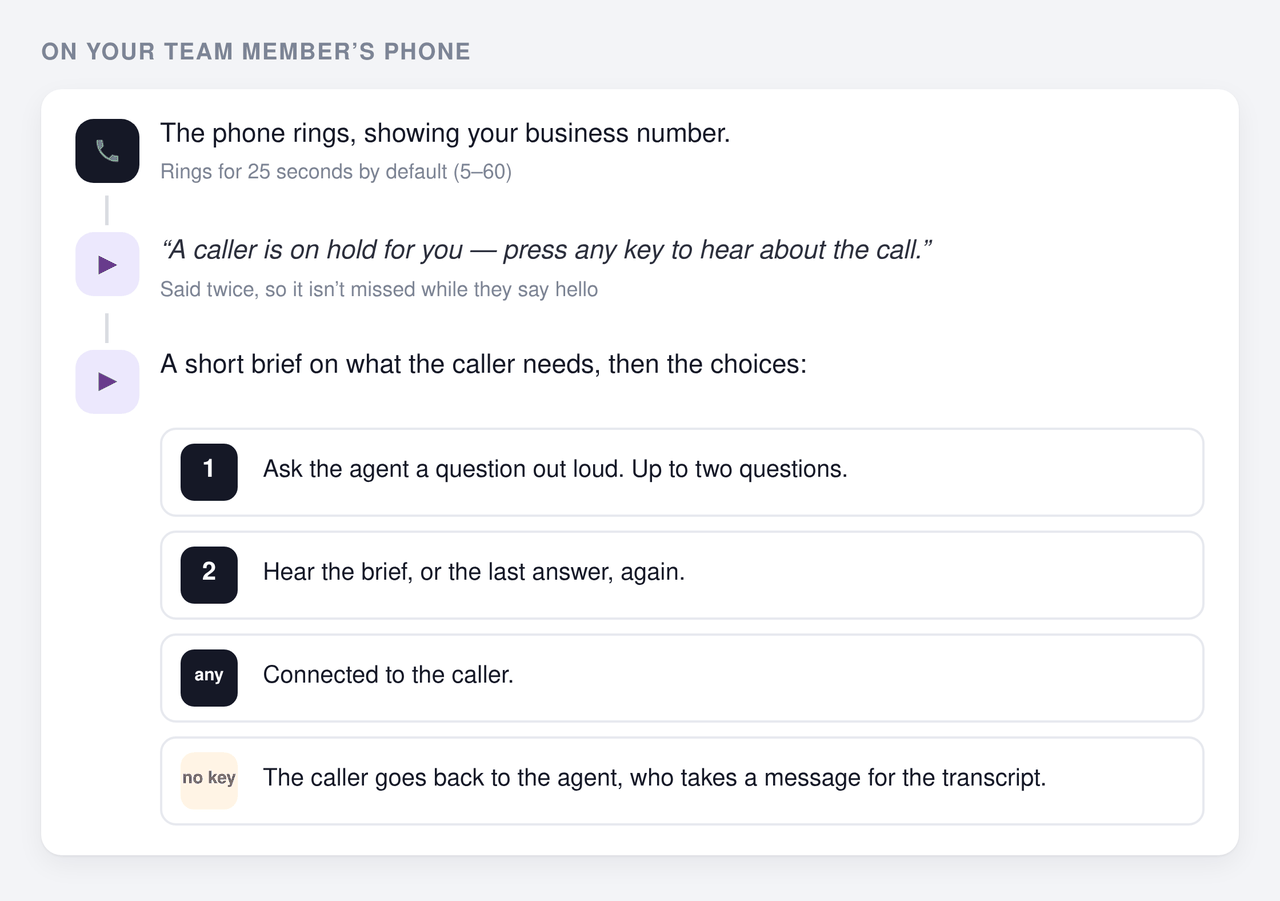
Set Ring for to how long your team usually takes to answer (25 seconds by default).
In When to hand off, write the rule. Calls usually need hours in the rule, because a transfer rings a real phone:
Only transfer billing and payment questions, or a caller who asks for a person twice.
Never transfer outside 9am–5pm Monday to Friday (Pacific time); take a message instead.
If you already use lazy Live Chat Escalation, calls follow its condition by default. Turn on Use a different rule for calls to use the rule above for calls only.
When nobody answers, the agent comes back on the line and takes a message. Messages are saved in the call's transcript in Conversations and don't send an alert, so make checking phone calls part of your team's routine.
Step 7: Let it text the tracking link
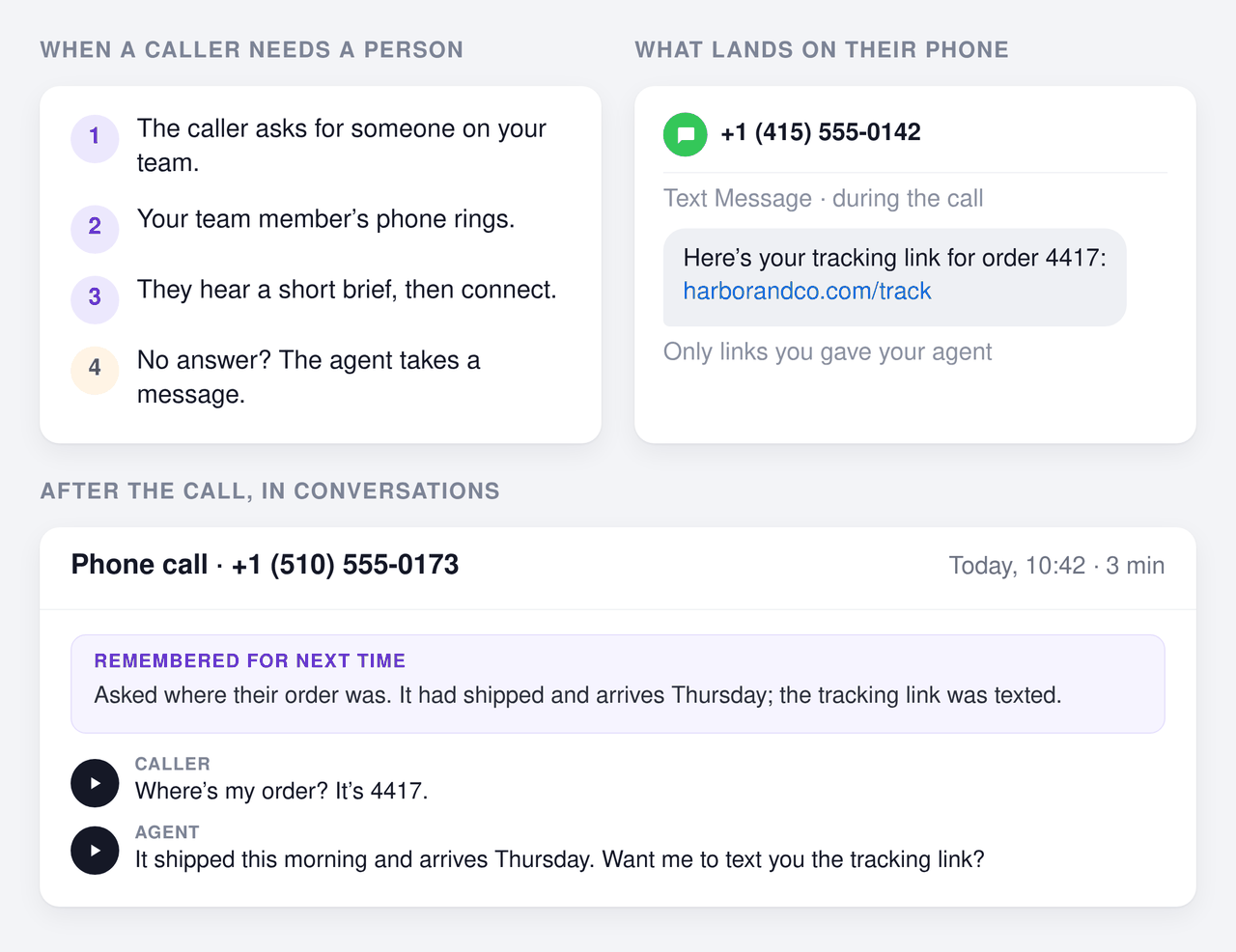
Turn on Text the Caller. When a caller asks for a text, or says yes when the agent offers, the agent sends the link from your Harbor & Co number. It only sends links you have given it, such as your website's pages and the tracking links your Order Tracking action returns, up to three texts per call.
Check the number's status in the section. If it says the number is not registered for A2P 10DLC, texts to US numbers will be blocked until the registration in Twilio is approved.
Step 8: Remember returning callers
Turn on Remember Earlier Calls. After each call, the agent saves a short summary, such as "Asked where their order was. It had shipped and arrives Thursday; the tracking link was texted." When the same number calls again within 90 days, the agent has the last three summaries, so "it still hasn't come" needs no explanation. Summaries never keep numbers, so it may still ask for the order number.
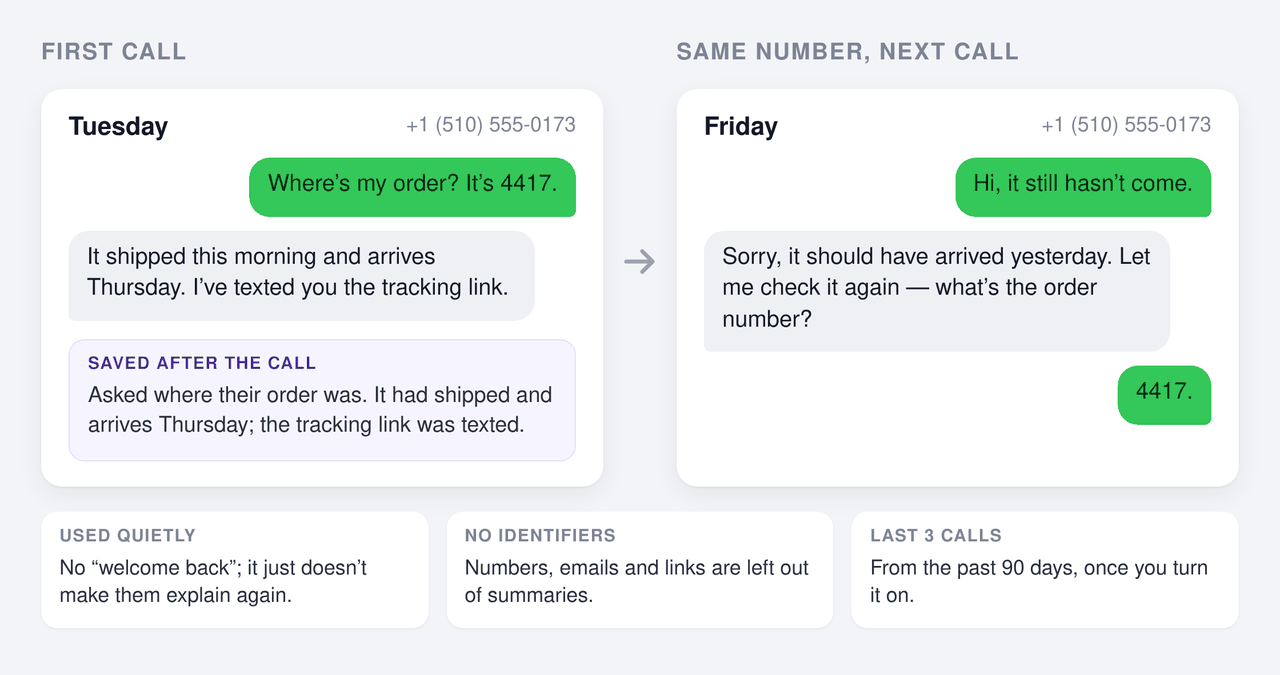
The agent uses this quietly: no "welcome back", and it doesn't read the summaries out. You can read each call's summary at the top of that call in Conversations. Memory starts from the moment you turn it on.
Click Save.
Step 9: Test every path before going live
Type your own number into Place a test call and run through each scenario. After each call, open it in Conversations to check the transcript and play back the recordings.
| Test | Say or do | Expected |
|---|---|---|
| Greeting | Answer the test call | The exact greeting, right away |
| Knowledge | "What's your return policy?" | A short, correct spoken answer |
| Order lookup | "Where's my order? It's 4417." | "Let me check", then the status and delivery date |
| Keypad | Press 1, then key in the order number and press # | The agent looks up the order |
| Text | "Can you text me the tracking link?" | A text arrives from your number |
| Interrupting | Talk over the agent mid-sentence | It stops and listens |
| Hand-off, in hours | "I have a billing question, can I talk to someone?" | Your team member's phone rings, they hear the brief, press a key and are connected |
| Hand-off, out of hours | Same, outside your hours | The agent offers to take a message instead |
| No answer | Let the team member's phone ring out | The caller is back with the agent, who takes a message |
| Silence | Say nothing for a while | "Are you still there?", then a goodbye |
Test calls are never used for caller memory. To test memory, call the number from your own phone, hang up, then call again and say "I'm calling about my order again." The agent should know what your earlier call was about without you explaining it; it may still ask for the order number, because summaries never keep numbers.
Step 10: Go live
- If you used a Twilio trial account, upgrade it. Trial accounts only accept calls from verified numbers and play a trial message first.
- Set up call forwarding from your existing business number to the Twilio number, or publish the Twilio number.
- For the first week, read a few calls in Conversations every day. Wherever the agent hesitated or got something wrong, add the missing answer to the knowledge base or tighten the phone prompt.
Tips
- Put the most-asked question first in the greeting. If most calls are about orders, "Press 1 for an order" saves every caller a few seconds.
- Don't let it read numbers aloud. Ask it in the prompt to offer a text for anything longer than a few digits.
- Watch your hand-off rule's hours. Give the time zone in the rule, so the agent and your team agree on what "9am" means.
- Noisy callers. If calls from cars or shops make the agent stop talking too often, raise Threshold under Audio Tuning.
- Credits. Calls are only answered while the workspace has more than 30 credits. Keep a buffer, or turn on auto-recharge, so the line never goes quiet.
Frequently Asked Questions
What does the phone receptionist in this guide do?
It answers the store's phone around the clock. It answers questions from the knowledge base, looks up orders with the Order Tracking action while the caller waits, texts the tracking link, transfers billing questions to a team member during business hours, takes a message when nobody can answer, and remembers returning callers so they don't have to repeat themselves.
What do I need to build it?
A Chat Data agent trained on your website and policies, a plan that includes Realtime Voice, a Twilio account with a voice number, and, for order lookups, the Order Tracking AI action connected to your store. To text callers on a US number, the number also needs A2P 10DLC registration in Twilio.
Can it transfer calls only during business hours?
Yes. Write the hours into the Human Hand-off rule, for example "Never transfer outside 9am to 5pm Monday to Friday; take a message instead." Outside those hours the agent takes a message, which is saved in the call's transcript in Conversations.
How do I test it before customers call?
Use Place a test call on the Realtime Voice page. The agent calls your own phone from the connected number, and you can run through each scenario in this guide: an order lookup, a text, a hand-off inside and outside hours, and a call back to check that it remembers.