
Advanced Features
AI Phone Calls
Your Chat Data agent can answer your business phone. Callers talk with it in a natural, spoken conversation: it greets them, listens, answers from your knowledge base and instructions, looks things up with your AI Actions, texts them links, and transfers the call to your team when they need a person. Every call is saved in Conversations next to your chats.
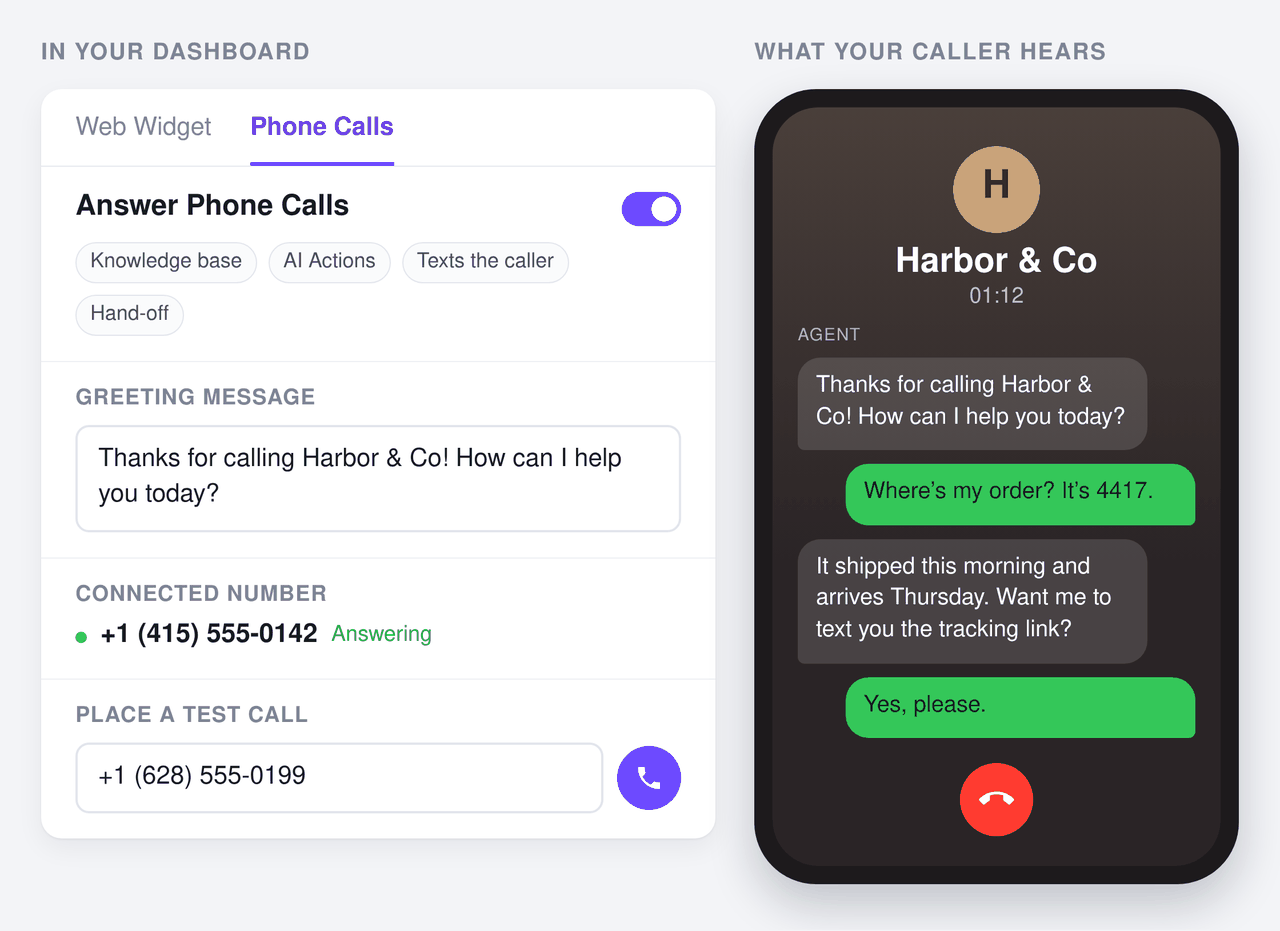
Phone calls use the same realtime voice-to-voice engine as the Realtime Voice Chat button on your website, so the agent hears the caller directly and answers in its own voice with no typing in between. This page covers setup and every setting on the Phone Calls tab. For a complete worked example, see Build an AI Phone Receptionist.
Before you start
You need three things:
- A plan that includes Realtime Voice. Phone calls are part of Realtime Voice. See pricing for the plans that include it.
- A Twilio account. Calls run on your own Twilio account, and your phone number stays yours. If you don't have one yet, create it at twilio.com. A trial account works for testing, with limits described below.
- Credits in your workspace. The AI side of each call is charged in Chat Data credits. Calls are only answered while the workspace has more than 30 credits; below that, callers hear that the service is unavailable.
Twilio trial accounts
On a Twilio trial account, only phone numbers you have verified in Twilio can call your number or receive its texts, and every caller hears a short trial message and must press a key before the call connects. Upgrade the Twilio account before real customers call.
Setup takes four steps:
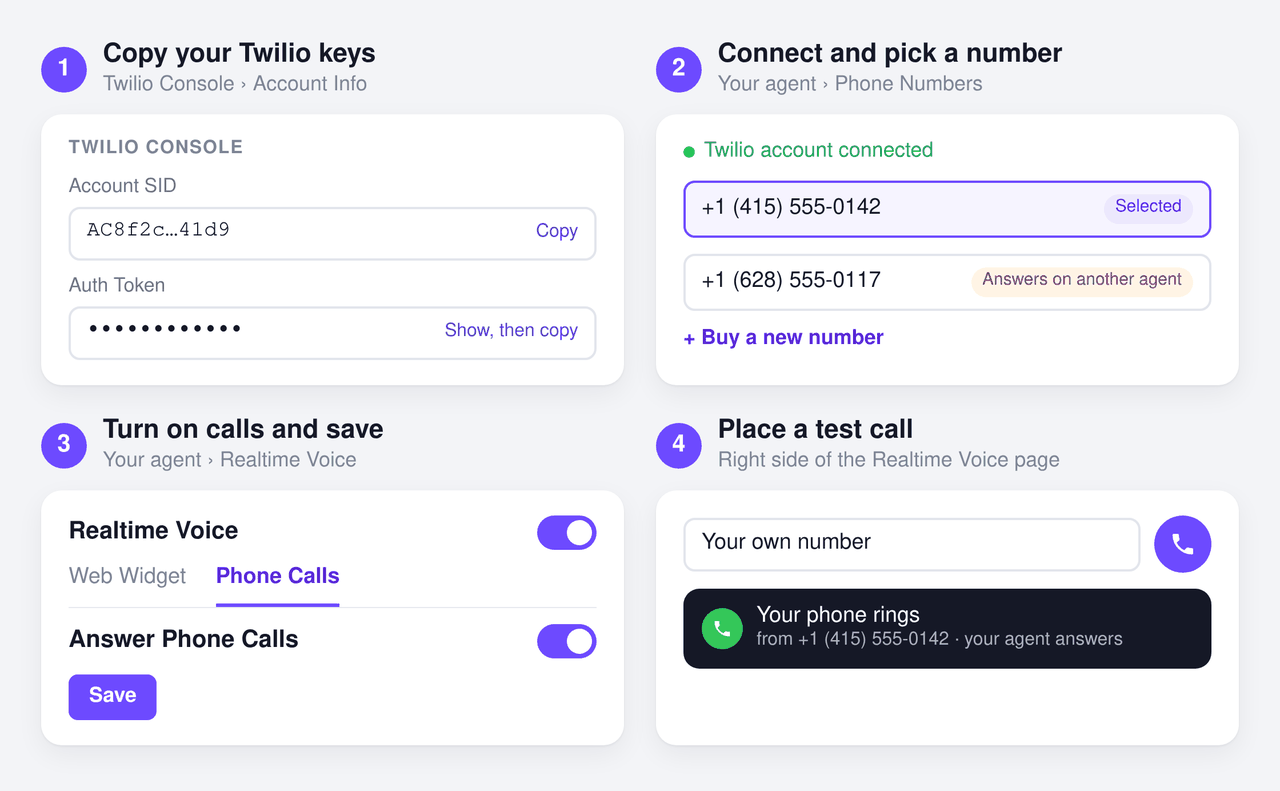
Step 1: Connect your Twilio account and a phone number
Open your agent and go to its Phone Numbers page in the sidebar.
- Click to add a number and choose Connect your Twilio account.
- Open the Twilio Console. Your Account SID and Auth Token are on the Console home page under Account Info (scroll down), or under Settings → Account settings → API keys & auth tokens. Copy both and paste them in.
- The Account SID starts with
ACfollowed by 32 letters and numbers. A SID that starts withSKis an API Key, not the Account SID. - The Auth Token is 32 characters. In Twilio, click Show (the eye icon) before copying it, or you copy the hidden placeholder.
- Using a Twilio sub-account? Open it under Settings → Account settings → Subaccount management and copy that sub-account's own SID and token.
- The Account SID starts with
- Chat Data checks the credentials with Twilio, then lists the numbers in the account. Pick the one this agent should answer, or Buy a new number right there. Twilio bills the number to your account.
Each number in the list shows its current state, so you don't take over a number that is busy elsewhere:
| Label | Meaning |
|---|---|
| Already on this agent | Connected to this agent. |
| Answers on another agent | Another of your agents answers calls on it. Connecting it here moves the calls to this agent. |
| Calls go elsewhere now | Twilio currently sends this number's calls somewhere outside Chat Data. Connecting it here replaces that. |
| Texts on another agent / Texts go elsewhere now / Texts go to a Messaging Service | The number's text messages are handled somewhere else. |
| SIP trunk — no voice | The number can't take voice calls here. |
When you connect a number, Chat Data points its incoming calls to your agent in Twilio for you. There is nothing to configure in Twilio by hand.
Keeping a number you have with another provider
If your business number is with a phone company other than Twilio, you don't need to move it. Connect or buy a Twilio number as above, then set up call forwarding from your current number to the Twilio number in your phone provider's settings. Callers keep dialing the number they know, and the agent answers.
Step 2: Turn on phone calls
- Open your agent's Realtime Voice settings and turn on Realtime Voice at the top. The Phone Calls tab appears next to Web Widget.
- On the Phone Calls tab, turn on Answer Phone Calls.
- Adjust the settings below as you like, then click Save.
Realtime Voice is one switch for both channels, so turning it on for calls also adds the voice button to your website chat.
Until both switches are on and saved, the number shows as Connected — not answering under Connected Phone Numbers, and callers hear that the service is unavailable.
Step 3: Place a test call
On the right of the Realtime Voice page, type your own phone number into Place a test call and click the call button. The agent calls you from your connected number, so you can hear the greeting, ask your questions, and try the hand-off before you share the number.
Test calls are never used for caller memory.
Settings reference
The Phone Calls tab has one section per setting. Use Show sections at the top of the page to jump to one, or to hide the ones you don't use.
Answer Phone Calls
The main switch for this channel. While it is on, your agent answers calls to your connected voice numbers; while it is off, callers hear that the service is unavailable.
What callers can do on a call:
- Ask anything your agent knows. It answers from your knowledge base and instructions, the same as in chat.
- Use your AI Actions. API actions, MCP tools, order tracking, web search and web scraping all work on calls. Each lookup takes a few seconds (up to about 20), and the agent tells the caller it is checking so the line is never silent.
- Press keys. Callers can use their keypad. To offer a menu, list the options in your Greeting Message ("press 1 for orders") and say in your prompt what each key does. For long numbers such as an order or account number, callers finish with
#or pause for two seconds. - Interrupt. Callers can talk over the agent the way they would with a person; it stops and listens.
- Hang up when they're done. The agent says goodbye and ends the call when the caller has what they need.
Not available on calls: booking widgets, buttons, forms and workflows. These are built for screens and stay in your chat channels.
Use Separate Prompt for Phone Calls
- Off (default): calls use the same prompt as your website voice chat.
- On: calls get their own prompt in Phone Call Prompt, starting as a copy of the web voice prompt.
Turn this on when callers need something different from website visitors, for example a shorter, more conversational style, or instructions about your keypad menu and opening hours.
Phone Call Prompt
The instructions the agent follows on calls (shown when the separate prompt is on). Auto Prompt can draft one for you, and Reset returns it to the copy of your web voice prompt.
Tips for a good phone prompt:
- Write for the ear. Ask for short sentences and one question at a time. Long lists and long numbers are hard to follow by ear; ask the agent to offer to text them instead.
- Say who it speaks for. Name your business and the role ("You are the receptionist for Harbor & Co").
- Describe the keypad menu, if your greeting offers one: what each key means and what to do next.
- Say what it should never do on a call, for example quote prices you haven't given it or promise callbacks at a specific time.
Greeting Message
The first thing every caller hears. The agent always speaks first, so callers never pick up to silence. If you leave it empty, the agent says "Hello! How can I help you today?".
Keep it short and put any keypad menu here, because the greeting is the only thing callers hear before they speak: "Thanks for calling Harbor & Co! Press 1 for an order, or just tell me what you need."
Voice & Model
- OpenAI Realtime Model: the model that listens and talks on calls, set separately from the website.
gpt-realtimeis the default;gpt-realtime-miniuses fewer credits. - Voice: the OpenAI voice for calls. You can choose a different voice for calls than for the website.
- Custom voice (ElevenLabs): if you have set up a custom voice under Customize Voices and turned on Use customize voice in the Web Widget tab's Default Voice section, calls speak with that voice too. It is one setting for both channels. The OpenAI voice above then becomes the Backup voice: if ElevenLabs is unavailable during a call, for example because the API key stopped working, the call carries on with the backup voice instead of going silent.
HIPAA workspaces
With a custom ElevenLabs voice, the agent's replies are sent to ElevenLabs for speech using your own API key, and they can contain PHI. The Business Associate Agreement with ElevenLabs is yours to hold. Turn the custom voice off if PHI must not reach that processor.
Call Limits
- Maximum call duration: calls end automatically after this many minutes. Default 10, range 1–60. When the limit is reached, the agent tells the caller the call has reached its time limit, says a brief goodbye and hangs up.
- Silence hang-up: after this many seconds without speech from either side, the agent asks whether the caller is still there. If the line stays silent for as long again, it says a brief goodbye, tells the caller they are welcome to call back, and hangs up. Default 30 seconds, range 5–600.
Human Hand-off
Let the agent put a caller through to a person. Off by default.
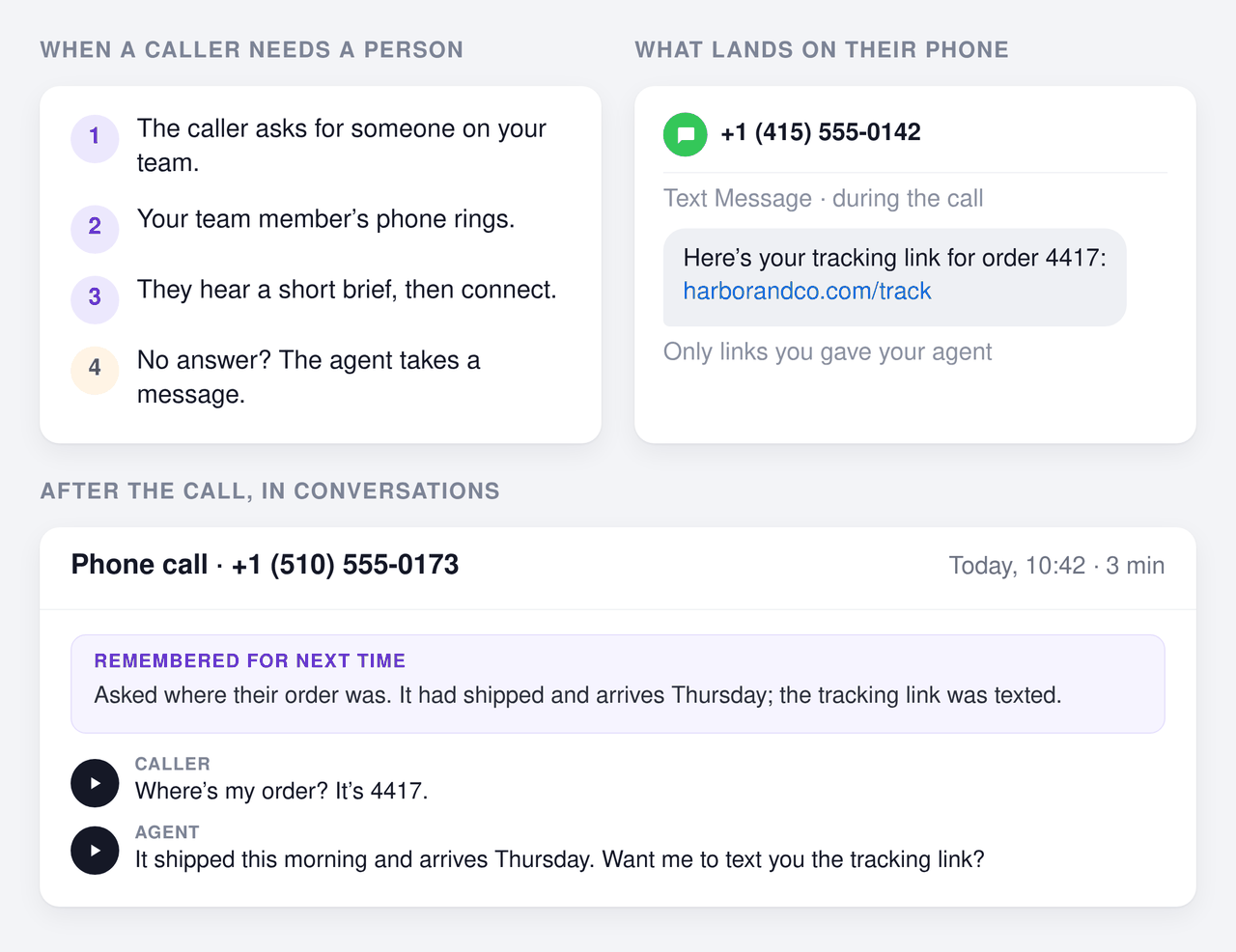
How a hand-off goes:
- The caller needs a person, and your hand-off rule allows it. The agent tells them it is connecting them and puts them on hold.
- Your team member's phone rings. It shows your business number as caller ID, so they know it is a work call.
- They hear "A caller is on hold for you — press any key…" (twice, so it isn't missed while they say hello), press a key, and are connected.
- No answer? The caller comes back to the agent, who apologises and takes a message. The message is saved in the call's transcript in Conversations.
Settings:
Team member's phone number: where the hand-off rings, in international format, for example
+14155552671.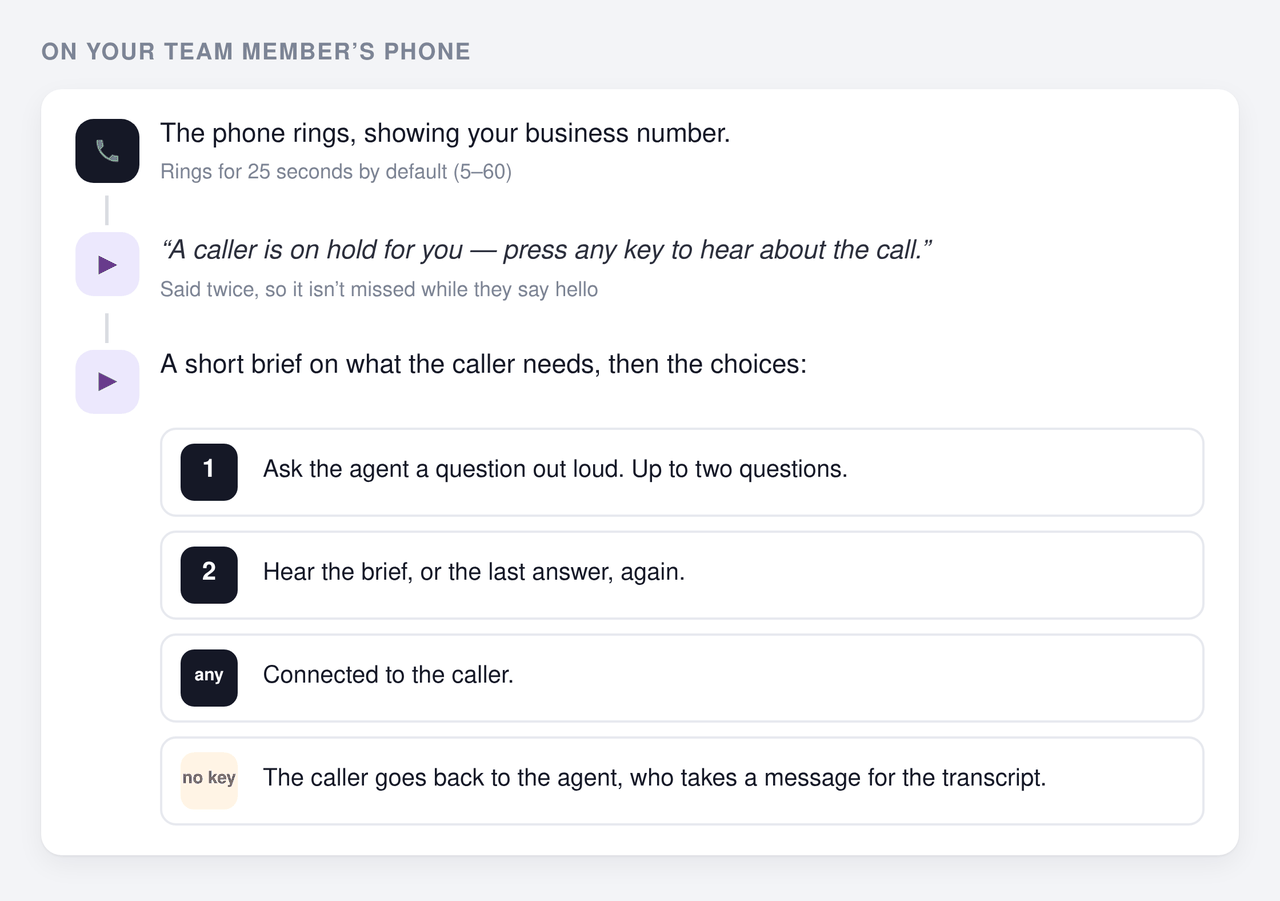
Brief the team member before connecting (on by default): after pressing a key, your team member hears a short summary of the conversation, usually two to four sentences. They can then press
1to ask the agent a question out loud (up to two questions, within about 45 seconds),2to hear the brief or the last answer again, or any other key to be connected. With the brief off, they only hear that a caller is waiting, then that they are connected. The brief and its options are spoken in your Live Chat language.Ring for: about how long to ring your team member before giving up and returning the caller to the agent. Default 25 seconds, range 5–60. After they pick up, they have about 15 seconds to press a key.
When to hand off: the rule the agent follows before transferring.
- If you use lazy Live Chat Escalation, calls follow your Live Chat escalation condition, so calls and chats hand off alike. Turn on Use a different rule for calls to give calls their own rule instead. It replaces your Live Chat condition on calls; it is not added to it.
- Otherwise, write the rule here. It is added to the built-in rule.
- Calls often need their own rule about hours, because a transfer rings a real phone while live chat waits in a queue. For example: "Only transfer billing questions. Never transfer outside 9am–5pm Monday to Friday; take a message instead."
Messages don't notify you
When nobody answers a hand-off, the agent takes a message and saves it in the call's transcript. It does not send you an alert, so check Conversations for phone calls with messages.
Text the Caller
Your agent can text callers a link, an address or a code when they ask, so nobody has to write it down mid-call. Off by default.
- When it texts: only when the caller asks for a text or accepts the agent's offer, and only when their caller ID is shown.
- What it can send: only links you have given it, from your prompts, greeting, knowledge base, and your API, MCP and order tracking actions. It never texts links it found through web search, web scraping or prebuilt apps.
- How many: up to three texts per call.
- From which number: your agent's own phone number, on your Twilio account, which bills each message.
- Replies: the agent doesn't read replies to its texts. If SMS is turned off for the number in Chat Data, replies go to whatever that number's SMS setup is in Twilio.
US numbers need registration. Carriers block texts to US numbers from numbers that are not registered for A2P 10DLC (or verified, for toll-free numbers). The section shows each of your numbers' status: Registered for A2P 10DLC, registration pending (texts won't arrive until it is approved), or not registered / registration failed (texts are blocked), with a link to fix it in Twilio.
Remember Earlier Calls
Returning callers don't have to repeat themselves. Off by default.
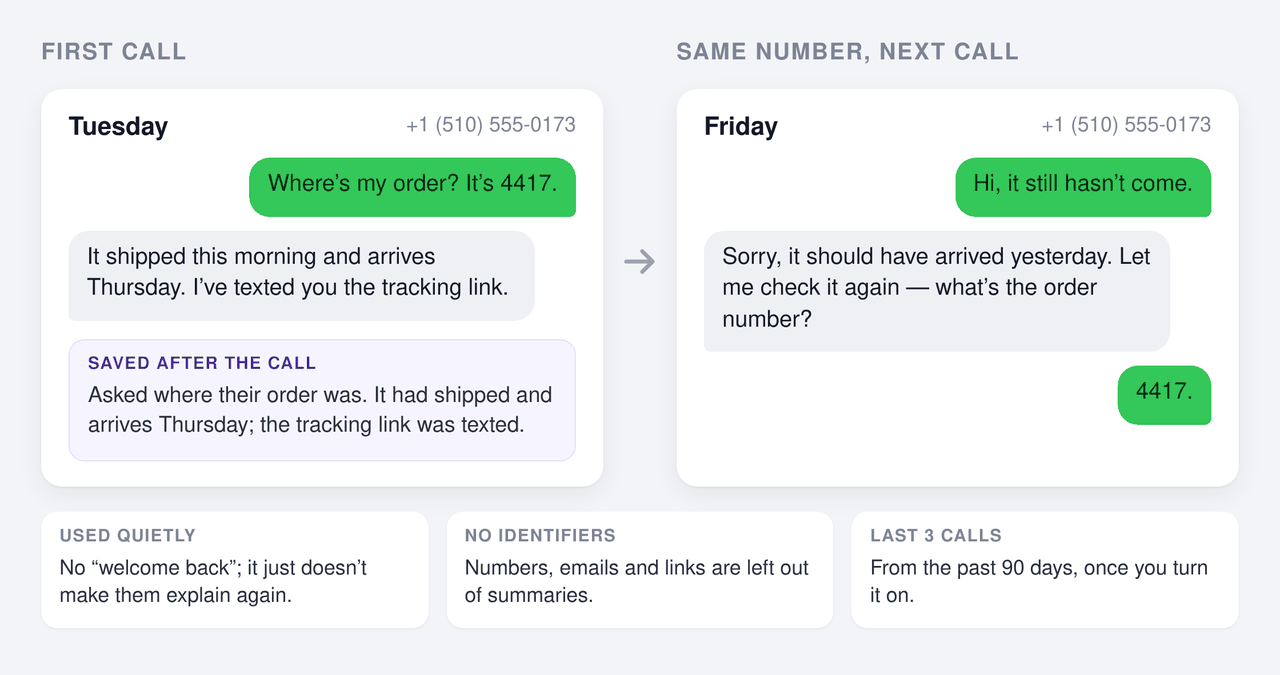
- How it works: after each call, a short summary of what the caller wanted and what happened is saved with that call. When the same number calls again, the agent receives the summaries of the caller's last three calls from the past 90 days, as part of the conversation's history.
- Used quietly: the agent doesn't announce that it remembers or greet callers as returning callers. It simply carries on from what it knows, so "it still hasn't come" is understood without the caller explaining again. Because summaries never keep numbers, it may still ask for an order or account number.
- What you see: each call's summary is shown at the top of that call in Conversations, so you can read exactly what the agent remembers.
- What summaries leave out: phone numbers, email addresses, links and other identifiers. Callers can't use a summary to give the agent instructions for later calls.
- Starts when turned on: calls from before you turned it on are not summarised, so memory builds up from then.
- Never remembered: callers who withhold their number, test calls, and agents that don't store conversations.
- HIPAA workspaces: only callers whose number the phone network fully verified (STIR/SHAKEN "A" attestation) are remembered.
Caller ID can be faked, so the summaries reach the agent as an earlier turn of the conversation, never as instructions: they carry no more weight than anything the caller says on the call.
Connected Phone Numbers
Lists this agent's voice numbers and whether each one is answering. Set to answer calls means the number is live; its live status, including plan, credits and Twilio, is on the Phone Numbers page. Connected — not answering until Realtime Voice and Answer Phone Calls are on and saved means a switch is still off. With no voice numbers yet, follow Manage in Phone Numbers → to add one.
Settings shared with the website
Three sections below the tabs apply to both your website voice chat and phone calls:
- Background Noise (both channels): a quiet ambient sound under the agent's voice, such as an office, a call center or keyboard typing, so the line never feels empty. It is on by default; pick a sound or turn it off. Calls play it a little louder to make up for the phone line.
- Audio Recording (both channels): records each caller turn and each agent reply as its own recording, which you can play back on that message in Conversations. On by default. Recordings are only kept for agents that store conversations, and they count toward your workspace's file storage. Agent recordings are the agent's voice only, without the background noise.
- Audio Tuning (both channels): Threshold, Prefix Padding and Silence Duration control how the agent detects that someone has started and stopped speaking, and RAG Limit controls how many knowledge-base results go into each answer. See Realtime Voice Chat for what each one does. Raise the threshold if background noise on the caller's side makes the agent stop talking too often.
Calls in Conversations
Every call is saved in your agent's Conversations (Chat Logs) with its source set to phone call:
- the full conversation, with the caller's and the agent's turns;
- the caller's phone number on the lead;
- a play button on each message when Audio Recording is on;
- the summary the agent remembers, when Remember Earlier Calls is on;
- hand-off events and any message the agent took.
Costs
- Twilio bills your Twilio account directly for the phone number, call minutes and text messages.
- Chat Data credits cover the AI side of each call: the realtime model's audio and text tokens, priced like any realtime voice chat.
gpt-realtime-miniuses fewer credits thangpt-realtime. - Calls are answered only while the workspace has more than 30 credits.
Troubleshooting
| What happens | Why, and what to do |
|---|---|
| Callers hear that the service is unavailable | Realtime Voice or Answer Phone Calls is off or not saved, the plan doesn't include Realtime Voice, or the workspace has 30 credits or fewer. Check Connected Phone Numbers and the Phone Numbers page. |
| Callers hear a trial message and must press a key | The Twilio account is a trial account. Upgrade it in Twilio. |
| Only some people can call the number | Twilio trial accounts only accept calls from verified numbers. Upgrade the account. |
| The agent says it will text, but nothing arrives | Turn on Text the Caller, and check the number's A2P 10DLC status in that section. Texts also need the caller's ID to be shown. |
| A hand-off never rings | Check the team member's number is in international format, and that your hand-off rule allows the transfer at that time. |
| The agent stops talking when the caller's room is noisy | Raise Threshold under Audio Tuning so background sound isn't taken for speech. |
| The agent speaks with the OpenAI voice instead of your custom voice | ElevenLabs was unavailable, so the call used the backup voice. Check your ElevenLabs API key under Customize Voices. |
| The Phone Numbers page says the Auth Token no longer works | The token was changed in Twilio. Paste the current one from Account Info; other numbers on the same account need it too. |
Frequently Asked Questions
What do I need before my agent can answer phone calls?
A Chat Data plan that includes Realtime Voice, a Twilio account connected on your agent's Phone Numbers page, and a Twilio phone number with Voice turned on. Then turn on Realtime Voice and, on its Phone Calls tab, Answer Phone Calls, and save.
Can I keep my existing business phone number?
Yes. Either bring a number you already have in Twilio, or keep the number you have with another provider and forward its calls to your Twilio number from that provider's settings. You can also buy a new number on the Phone Numbers page.
Can the agent transfer a caller to a person?
Yes, with Human Hand-off. The agent rings your team member's phone; they can hear a short brief on what the caller needs, then press a key to be connected. If nobody answers, the caller comes back to the agent, who takes a message that you can read in the call's transcript in Conversations.
Why does a caller hear a trial message or the call not connect?
A Twilio trial account only accepts calls from numbers you have verified in Twilio, and callers hear a trial message and must press a key first. Upgrade the Twilio account before real customers call.