
Advanced Use Cases
Replace Node Chains With One AI Agent Node and MCP Tools
Many workflow tasks need two or more calls that depend on each other: one call finds an id, and the next call uses that id to get the content or make the change. Find the customer, then fetch their orders. Find the ticket, then add a comment. Find the calendar event, then move it.
Until now you built that as a chain of nodes. With the AI Agent node you connect your MCP tools to a single node, describe the goal, and the agent works out which tools to call and in what order to reach it.
Before and After
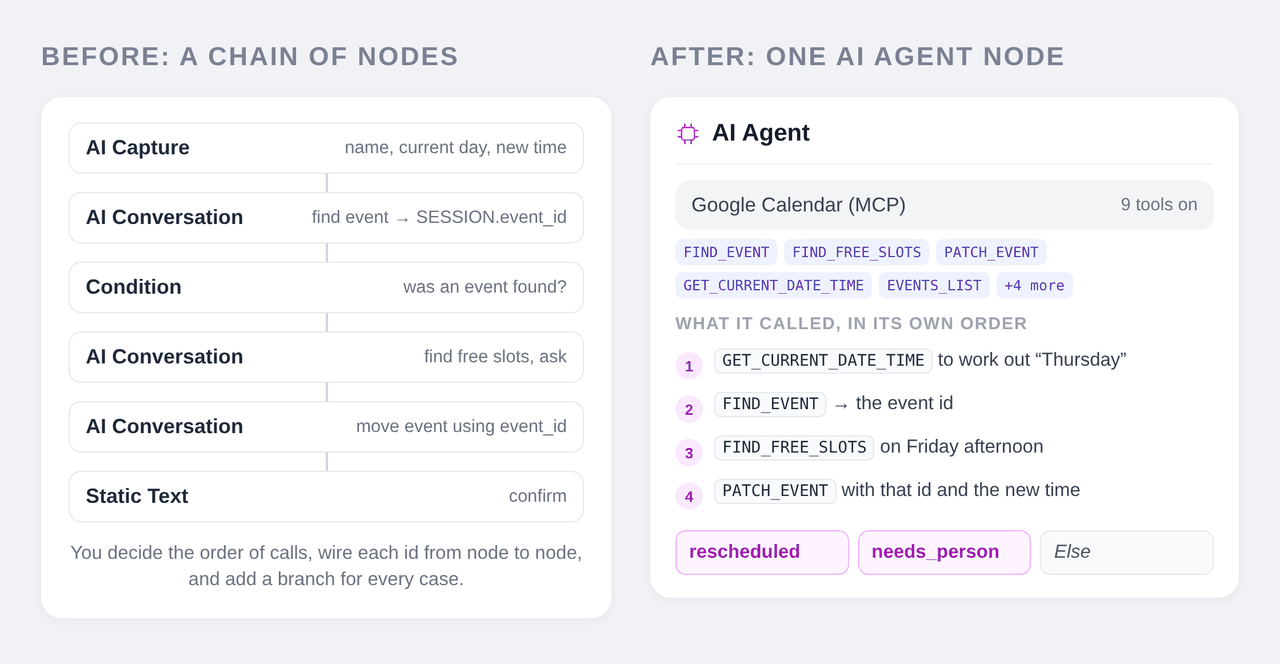
Before, rescheduling an appointment took a chain like this (the AI Conversation section shows the same pattern with SESSION.event_id):
- AI Capture extracts the visitor's name, the current appointment day and the new time.
- AI Conversation with the Google Calendar Find event tool, storing the event id with Store Action Result To →
SESSION.event_id. - Condition: was an event found? If not, a separate branch asks again.
- AI Conversation with Find free slots, offering times and waiting for the visitor to choose.
- AI Conversation with Patch Event, using
SESSION.event_idin its prompt. - Static Text to confirm.
You had to decide the order of the calls, pass every id from node to node through a variable, and add a branch for each case: no event found, two events found, the slot is taken, the visitor changes their mind.
After, it is one AI Agent node:
- Tools: the Google Calendar MCP app, with the tools you want it to have switched on (up to 100 per node)
- Agent Prompt: what the agent is for and the rules it must follow
- Exits:
rescheduled,needs_person, plus the built-in Else
The agent reads the description of each tool. It learns that Patch Event needs an event_id (and that the id is not the event title), that Find event searches by text and time, and that Find free slots returns open times. It then plans the sequence itself, sees each result before choosing the next call, and asks the visitor only for what it can't look up.
The difference shows when things don't go as planned. If Find event returns two appointments, the agent can ask which one. If the requested slot is taken, it can offer the nearest free ones. If the visitor changes their mind halfway, it can adapt, without a branch for each case.
What You'll Build
A front-desk assistant for "Bright Smile Dental" that handles:
Visitor: Hi, it's Dana Lee. Can you move my cleaning on Thursday to Friday afternoon?
In one AI Agent node, the agent:
- Calls
GOOGLECALENDAR_GET_CURRENT_DATE_TIMEto work out which date "Thursday" is - Calls
GOOGLECALENDAR_FIND_EVENTwith "Dana Lee" and Thursday's time range, and gets the event id - Calls
GOOGLECALENDAR_FIND_FREE_SLOTSfor Friday afternoon - Replies "I can do 2:00 or 4:30 on Friday. Which works for you?" and waits
- When Dana answers "4:30", calls
GOOGLECALENDAR_PATCH_EVENTwith the event id and the new time - Takes the
rescheduledexit with a confirmation message, fillingSESSION.new_timeand the patient's email from the booking for the next node
Prerequisites
- A Chat Data plan that includes workflows and AI actions (see pricing)
- A Google account with the calendar your appointments are booked in
- Live chat set up if you want the
needs_personexit to reach your team (see Live Chat Escalation)
Check your privacy settings first
If Anonymize PIIs for LLM is turned on for your chatbot (Settings → Privacy), the agent sees placeholders such as [PERSON_405287] instead of the real names, emails and dates. Two things follow:
- Dates: "Thursday" or "tomorrow at 3" becomes a placeholder, so the agent can't work out which day to search or book. For a scheduling agent, deselect the date type under Select PII Types to Anonymize.
- Names and emails: when the agent passes a placeholder to a tool, Chat Data swaps the real value back in before the tool runs, so a calendar search for
[PERSON_405287]searches for "Dana Lee". The agent may still treat the placeholders as missing details and ask the visitor to repeat them instead of calling the tool. If you see that in testing, deselect those types too, or keep them anonymized and accept the extra questions.
Step 1: Create the Workflow and Variables
- Open your agent's Settings → Workflows, click Create Workflow and name it "Reschedule appointments".
- Open the Variable Manager from the Tools sidebar and add
SESSION.new_time(type string, description "New appointment time the agent booked") andSESSION.patient_email(type string, description "Patient's email for the confirmation").
Step 2: Add the AI Agent Node
- In the Tools sidebar, open Add Message and drag AI Agent (marked New) onto the canvas.
- Connect the Start node to it and set its Label to "Front Desk Agent".
Step 3: Connect the Google Calendar MCP Tools
- In the node's Tools section, click Add Tool and choose MCP.
- Pick Google Calendar from the built-in apps and click Connect Account to sign in with the Google account that owns the appointment calendar (see MCP Integration for the full sign-in flow).
- Select the tools the agent may use. For rescheduling, these are enough:
| Tool | What the agent uses it for |
|---|---|
GOOGLECALENDAR_GET_CURRENT_DATE_TIME | Turning "Thursday" or "tomorrow" into a real date |
GOOGLECALENDAR_FIND_EVENT | Finding the visitor's appointment by name and time range, which returns the event id |
GOOGLECALENDAR_EVENTS_LIST | Listing appointments in a range when a search is too narrow |
GOOGLECALENDAR_FIND_FREE_SLOTS | Finding open times for the new appointment |
GOOGLECALENDAR_PATCH_EVENT | Moving the appointment (needs the event id) |
GOOGLECALENDAR_DELETE_EVENT | Cancelling. Only switch it on if you also add a cancelled exit with its own confirmation (see the note below) |
GOOGLECALENDAR_REMOVE_ATTENDEE | Removing a guest from a shared appointment, if you need it |
The Google Calendar app offers 29 tools in total. One AI Agent node can have up to 100 tools switched on at once, and every selected MCP tool counts as one. You can connect several apps to the same node, for example Google Calendar and Gmail, and the agent will combine them.
Give it the tools it needs, not every tool there is
More tools give the agent more room, but leave out tools you never want a visitor to trigger. For a public front desk that means Clear Calendar, Delete Calendar and the ACL (sharing) tools. Each tool has an on/off switch in the node's tool list, so you can turn one off without disconnecting the app.
Step 4: Write the Agent Prompt
Describe the goal and the rules. You don't need to spell out every call; the tool descriptions already tell the agent what each tool needs. Do state the rules the tools can't know about.
You are the front-desk assistant for Bright Smile Dental. You help patients move
their appointments in the clinic's Google Calendar.

How to work:
- Find the patient's appointment before you change anything. Search by the name
  the patient gives you and the day they mention.
- If you find more than one possible appointment, ask which one.
- Only offer times that are free, between 9:00 and 17:00 on weekdays,
  in the clinic's time zone (America/Los_Angeles).
- Keep the appointment's length when you move it.
- Confirm the new time with the patient before you change the appointment.

Rules:
- Never show or change appointments of anyone other than the patient you're talking to.
- If the patient wants something you can't do (cancelling, a new treatment,
  billing, a medical question), take the needs_person exit.
- Keep replies short and friendly.
Leave Include Knowledge Base on if your knowledge base has clinic policies the agent should follow, such as a 24-hour change rule. The agent checks it on every visitor message and can search again with its own query.
Step 5: Define the Exits and Output Variable
| Exit name | When should the agent take it? |
|---|---|
rescheduled | The appointment has been moved and the new time confirmed to the patient |
needs_person | The patient asks for a person, or needs something the agent can't do |
Allowing cancellations too
Every outcome the agent can reach needs its own exit. To let patients cancel, switch on GOOGLECALENDAR_DELETE_EVENT, add a cancelled exit ("The appointment has been cancelled and confirmed to the patient") connected to its own Send Email, change the prompt to "move or cancel", and take "cancelling" out of the needs_person rule.
Under Output Variables, add two:
| Variable | What should the agent put here? |
|---|---|
SESSION.new_time | The new appointment date and time, e.g. Friday, Oct 30, 4:30 PM |
SESSION.patient_email | The patient's email address, from the booking's attendees, or asked from the patient if the booking has none |
A calendar event usually lists its attendees' emails, so the agent can take the address from the booking it already found. Add SESSION.patient_email in the Variable Manager too (Step 1), and add one line to the Agent Prompt: "Before you take the rescheduled exit, make sure you have the patient's email: use the one on the booking, or ask for it."
The agent can send a final message when it takes an exit, so the patient gets the confirmation from the agent before the workflow moves on.
Step 6: Connect the Exits
- rescheduled → Send Email: send a confirmation to
{{SESSION.patient_email}}with{{SESSION.new_time}}in the subject and body. Leave the Send Email node without an outgoing connection, so the workflow ends and the conversation returns to your base chatbot. Don't rely on{{VISITOR.EMAIL}}here: it is only filled once the visitor's lead details are known, and when the recipient is empty, Send Email skips sending without an error. - needs_person → Live Chat Escalation: hand the conversation to your team.
- Else → Live Chat Escalation (or a Static Text apology). The agent takes Else when a cap is hit, credits run out, or something fails, and the visitor gets no message on that path, so always connect it.
To hand off a conversation that goes in circles, say so in the prompt, for example "If the patient still hasn't picked a time after three suggestions, take needs_person". The agent sees the whole conversation and decides.
Step 7: Test and Read the Debug Summary
Open Test Flow and try:
| Try this | What the agent should do |
|---|---|
| "Can you move my cleaning on Thursday to Friday afternoon? I'm Dana Lee." | Find the event, offer free Friday slots, move it after you choose, exit rescheduled; the confirmation email arrives at the booking's email |
| "I need to change my appointment." | Ask for the name and which appointment, then continue |
| A name with two appointments this week | Ask which one |
| "Friday at 10" when 10:00 is taken | Offer the nearest free times |
| "Can I talk to someone about my bill?" | Exit needs_person |
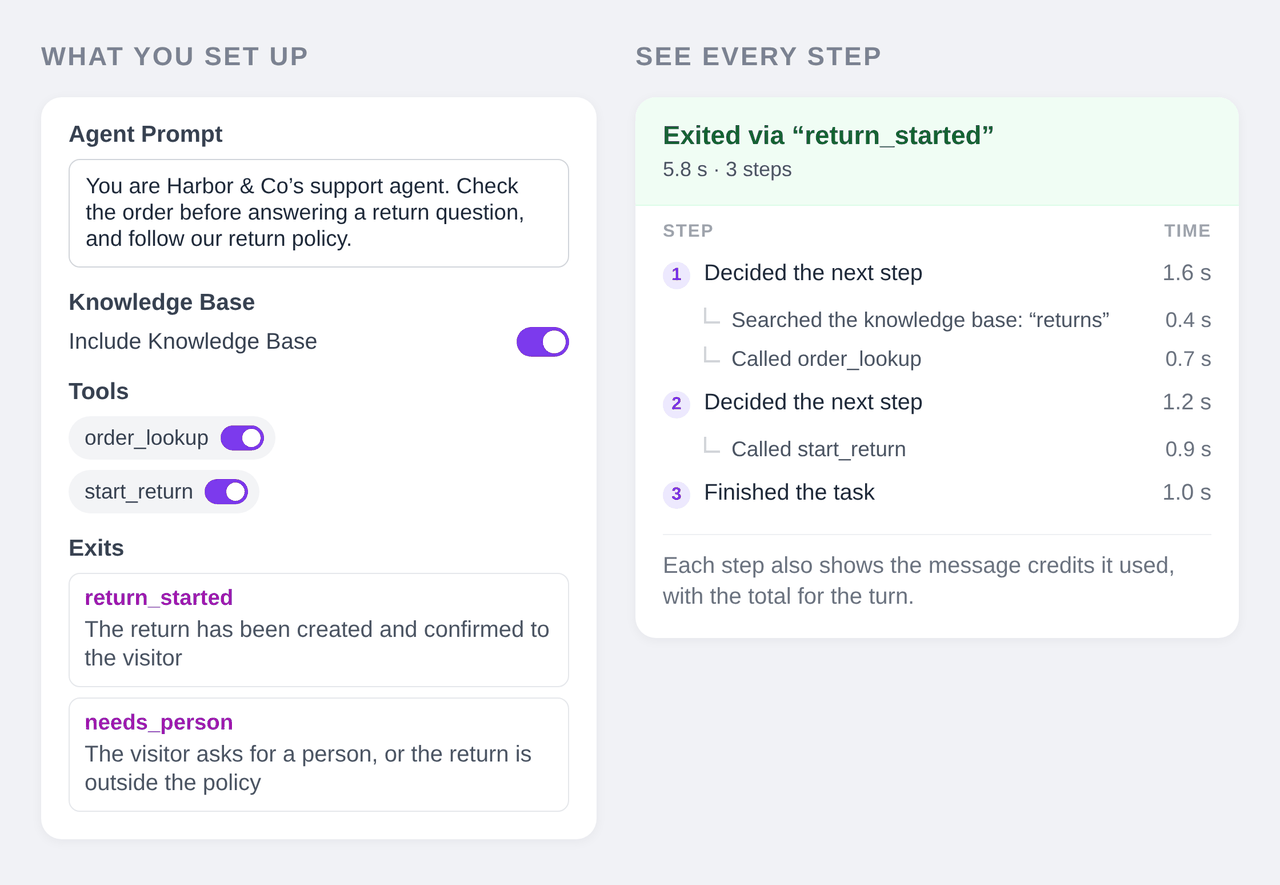
After each run, click Debug on the AI Agent's Node Transition row and open Summary. For the first message of the example you'll see something like:
Replied — waiting for the visitor's next message
1  Decided the next step
     Called GOOGLECALENDAR_GET_CURRENT_DATE_TIME
     Called GOOGLECALENDAR_FIND_EVENT
2  Decided the next step
     Called GOOGLECALENDAR_FIND_FREE_SLOTS
3  Wrote the reply
and after Dana picks a time:
Exited via "rescheduled"
1  Decided the next step
     Called GOOGLECALENDAR_PATCH_EVENT
2  Finished the task
Each step also shows its time and message credits, with the total for the turn. This is how you confirm the agent called the tools in a sensible order, and what a typical turn costs.
Step 8: Publish and Trigger It
- Click Publish.
- Open Settings → AI Actions, add a Workflow action, select "Reschedule appointments", and describe when to use it, for example "Use this when a patient wants to move an existing appointment."
- If this chatbot only handles appointments, turn on Force Trigger on Conversation Start so every conversation starts in the workflow.
Writing Prompts for Tool Chains
- Describe the goal and the rules, not the call sequence. The agent plans the order from the tool descriptions. Spell out an order only where your business requires one, such as "confirm before changing".
- State what the tools can't know: opening hours, time zone, who may see what, when to hand off.
- Tell it what to do when there are several matches or none. That's where node chains needed extra branches; one sentence in the prompt covers it.
- Prefer tools from one well-described app over many overlapping ones. Two tools that do almost the same thing make the agent's choice harder.
- Check real conversations in Chat Logs during the first days. The debug Summary shows each call, so you can see where a prompt or tool selection needs adjusting.
More Tool Chains That Fit One Node
| Task | Tools the agent chains |
|---|---|
| Answer from your docs | Notion or Google Drive MCP: search → fetch the page by id → answer |
| Support ticket follow-up | Help-desk MCP: find the ticket by customer email → read its comments → add a reply |
| Order questions | Your API Call or Order Tracking tool: find the order → fetch its shipment → answer |
| Returns | API Call tools: look up the order → check the policy in the knowledge base → start the return → exit return_started |
| CRM updates | CRM MCP: find the contact → update the deal stage → log a note |
Each of these used to be a chain of AI Conversation, API Call and Condition nodes. With the AI Agent node it's one node with the right tools and a few exits.
Troubleshooting
The agent tries to change something without finding it first. Add "Find the item before you change it" to the prompt. Check that the lookup tool (for example GOOGLECALENDAR_FIND_EVENT) is switched on.
The agent can't find the visitor's record, or keeps asking for details the visitor already gave. Check the privacy settings above: with Anonymize PIIs for LLM on, the agent sees placeholders for names, emails and dates, can't work out dates from them, and may ask the visitor to repeat a name or email. Also check that the MCP account you connected can see the calendar or workspace the records are in.
A tool fails. The agent sees the error and usually retries differently or tells the visitor. The debug Summary shows which call failed. Reconnect the MCP account if its sign-in has expired.
The run ends on Else. The debug Summary says why, for example Stopped: credit cap for this turn reached or Stopped: not enough credits.
I need more than 100 tools. Split the work across two AI Agent nodes connected by an exit, each with the tools for its part of the task. A node with fewer, relevant tools also makes better choices.
See the AI Agent node reference for every setting.
Frequently Asked Questions
Why use one AI Agent node instead of a chain of nodes?
Many tasks need one call to find an id and another call to use it, for example finding a calendar event and then moving it. With a chain of nodes you decide the order of calls, pass each id between nodes through variables, and add a Condition branch for every case. With the AI Agent node you give it the tools and a goal; it reads the tool descriptions, works out which call provides what the next call needs, and calls them in the right order on its own.
How many MCP tools can one AI Agent node use?
Up to 100 tools can be switched on in one AI Agent node, and every selected MCP tool counts as one. On the AI Agent node this limit applies per node instead of your plan's AI action count, on plans that include AI actions.
How does the agent know which tool to call first?
Each MCP tool comes with a description of what it does and what it needs. For example, the Google Calendar Patch Event tool requires an event id and says the id is not the event title, while Find Event searches events by text and time. The agent combines that with your Agent Prompt to plan the sequence, and it sees each result before choosing the next call.
What happens if the agent needs information from the visitor in the middle?
It replies with a question and the workflow waits on the AI Agent node. When the visitor answers, the agent continues where it left off with the results of its earlier tool calls still available, so it doesn't need to repeat the lookups.